Installing OpenClaw From Scratch And Connecting WeChat
Installing OpenClaw From Scratch And Connecting WeChat
OpenClaw is a popular open-source agent project. After installation, it starts a local Gateway, described in the CLI documentation, which is a WebSocket service responsible for channels, sessions, and hooks. Chat applications are one entry point; the browser Dashboard is another.
I installed it from scratch using the getting started guide and recorded the commands and interactions. I also include notes on ports, configuration paths, and self-checks for later troubleshooting.
Before Installation
Node.js: Node 24 is recommended. 22.16+ also works. If Node is missing, the installation script often installs it. Check first:
node --versionYou also need an API key from at least one model provider. The onboarding process asks for it. See the getting started guide.
OpenClaw supports macOS / Linux / Windows. On Windows, WSL2 is often easier. Native Windows may have edge cases with some skills. See Windows. For separate Node installation, see Node setup.
Install With One Command
On macOS / Linux:
curl -fsSL https://openclaw.ai/install.sh | bashOn Windows, PowerShell can use:
iwr -useb https://openclaw.ai/install.ps1 | iexFor the beta channel on Windows, you may see a command like:
powershell -c "& ([scriptblock]::Create((irm https://openclaw.ai/install.ps1))) -Tag beta"Use one path based on the script prompt. Docker, Nix, pure npm, and other installation methods are in the Install overview.
For beta on Linux/macOS:
curl -fsSL https://openclaw.ai/install.sh | bash -s -- --betaIf the script asks whether to generate and configure a gateway token, say Yes until the gateway restarts. This avoids authentication work later.
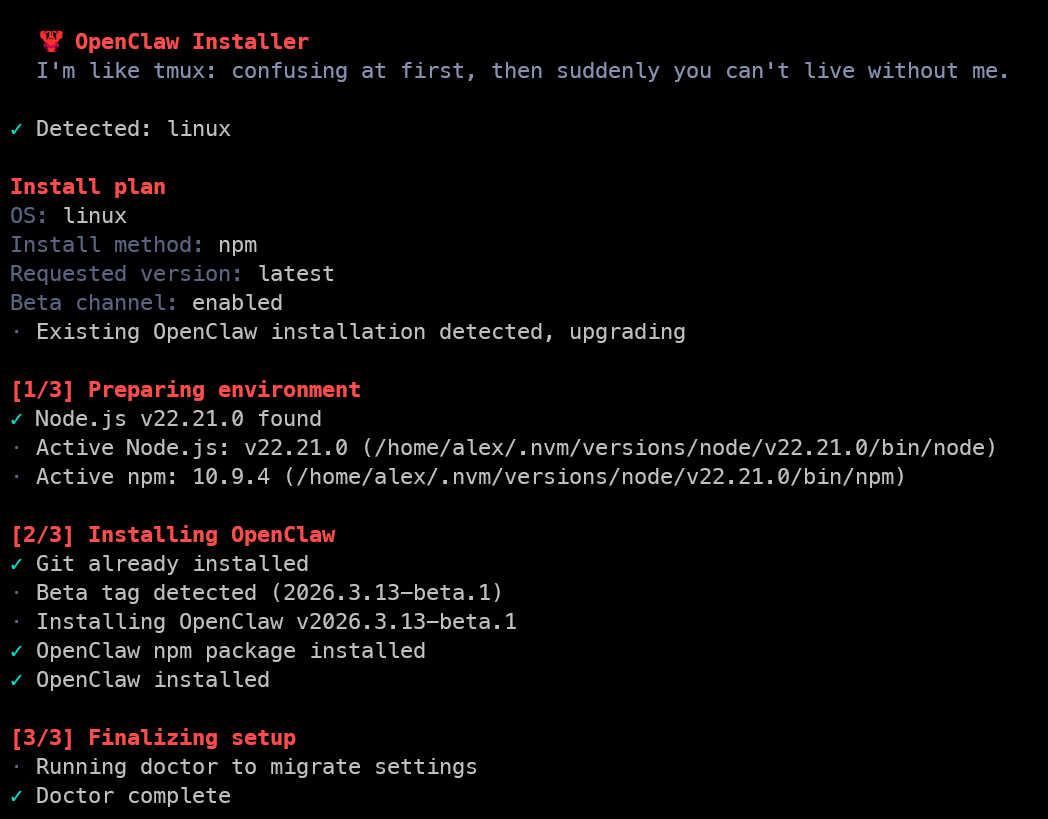
Configure With onboard
After installation:
openclaw onboard --install-daemon--install-daemon installs the gateway as a user-level daemon, such as systemd on Linux or LaunchAgent on macOS. If it crashes or the machine restarts, it can come back automatically. The full interaction is documented under onboard.
My flow looked roughly like this:
- Continue with personal defaults.
- Choose QuickStart for onboarding mode.
- Use Use existing values for config handling, so local edits are not overwritten.
- Fill in model provider and API key.
- For Select channel, choose Skip for now; WeChat is connected later through the plugin.
- Skip unused skills such as Places, Notion, OpenAI image/Whisper, ElevenLabs, and hooks.
- If Gateway service already installed appears, choose Restart.
The “How do you want to hatch your bot?” step can finish quickly if you do not configure many skills on the spot. More details are in the wizard.
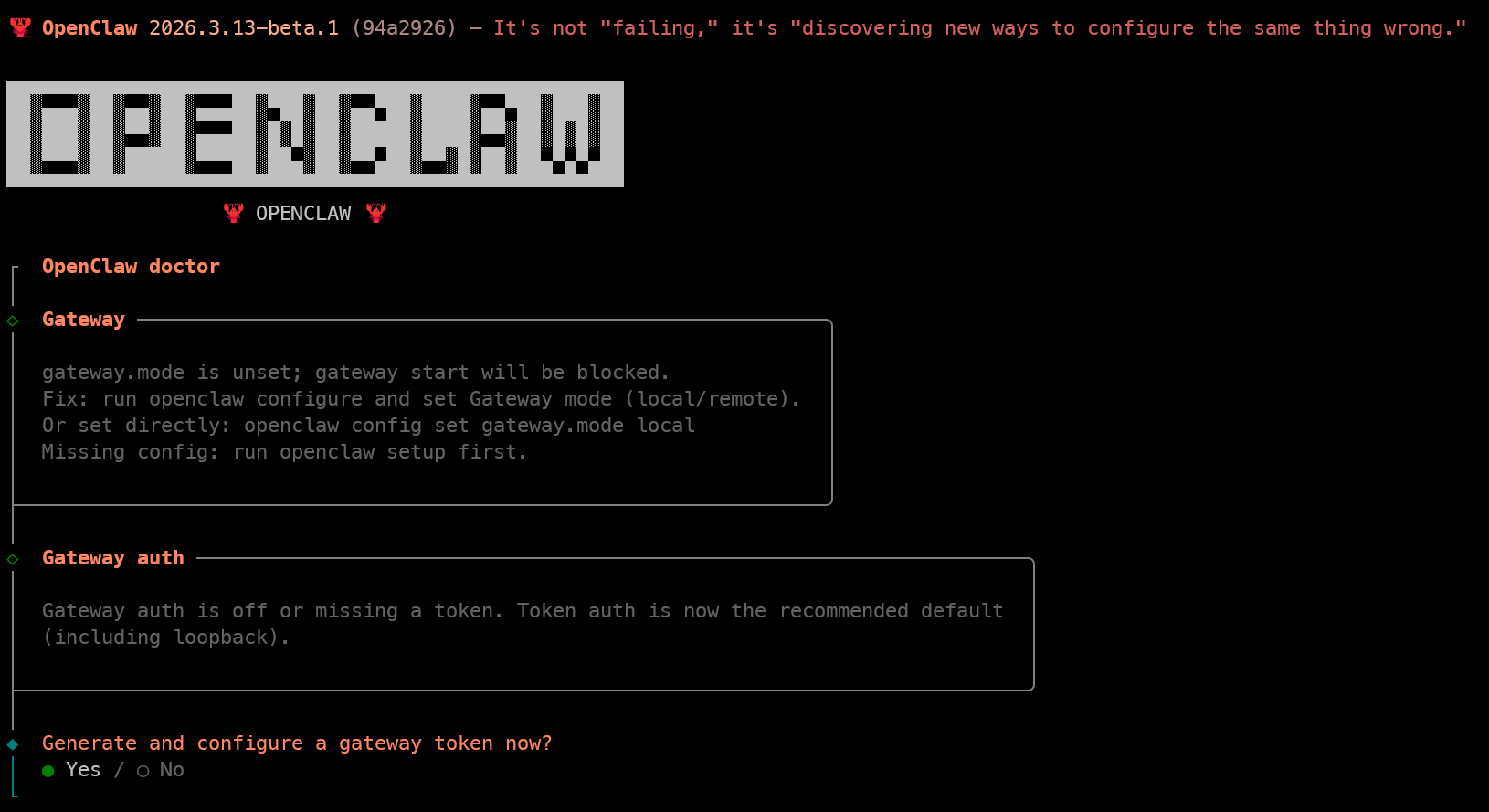
Confirm The Gateway Is Alive
openclaw gateway status
openclaw dashboard
gateway status checks whether the service is running through launchd, systemd, or scheduled task, and can probe RPC. The default WebSocket port is often 18789, but use your configuration as the source of truth.
If a script should fail when RPC is not reachable:
openclaw gateway status --require-rpcFor more checks:
openclaw gateway health --url ws://127.0.0.1:18789
openclaw gateway probe
probe scans local and remote gateways if configured. Seeing Reachable: yes and RPC: ok is a stronger signal. Multi-gateway environments can also use gateway discover.
openclaw dashboard opens the Control UI. If you can send one message and receive a response, the basic setup is done. For mobile chat first, Channels often makes Telegram the simplest path.
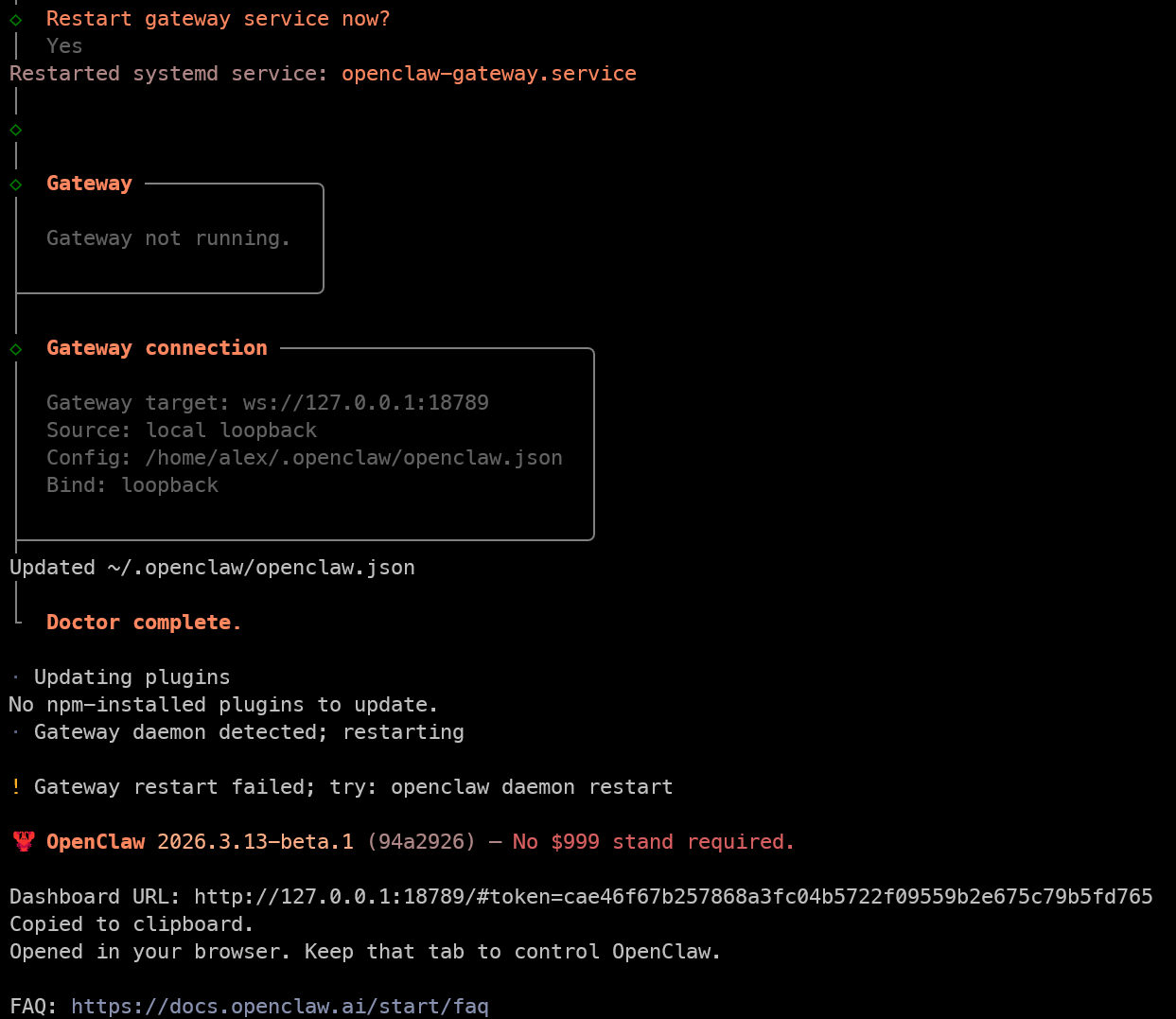
Where Configuration Lives
Configuration is usually under ~/.openclaw/openclaw.json in JSON5 format. The gateway hot-loads many changes. See Gateway configuration.
If gateway.mode=local is not set, openclaw gateway does not start by default. For temporary use, --allow-unconfigured is available. Binding outside loopback without authentication will also be blocked.
For state directory and configuration path, see OPENCLAW_HOME, OPENCLAW_STATE_DIR, and OPENCLAW_CONFIG_PATH. The full set is in Environment variables.
Service Start And Stop
After daemon installation:
openclaw gateway restart
openclaw gateway stop
openclaw gateway start
Prefer openclaw gateway over old openclaw daemon commands. If something fails, check gateway status, then logs and Logging. Sometimes the right next step is openclaw doctor.
Connect WeChat Through The Plugin
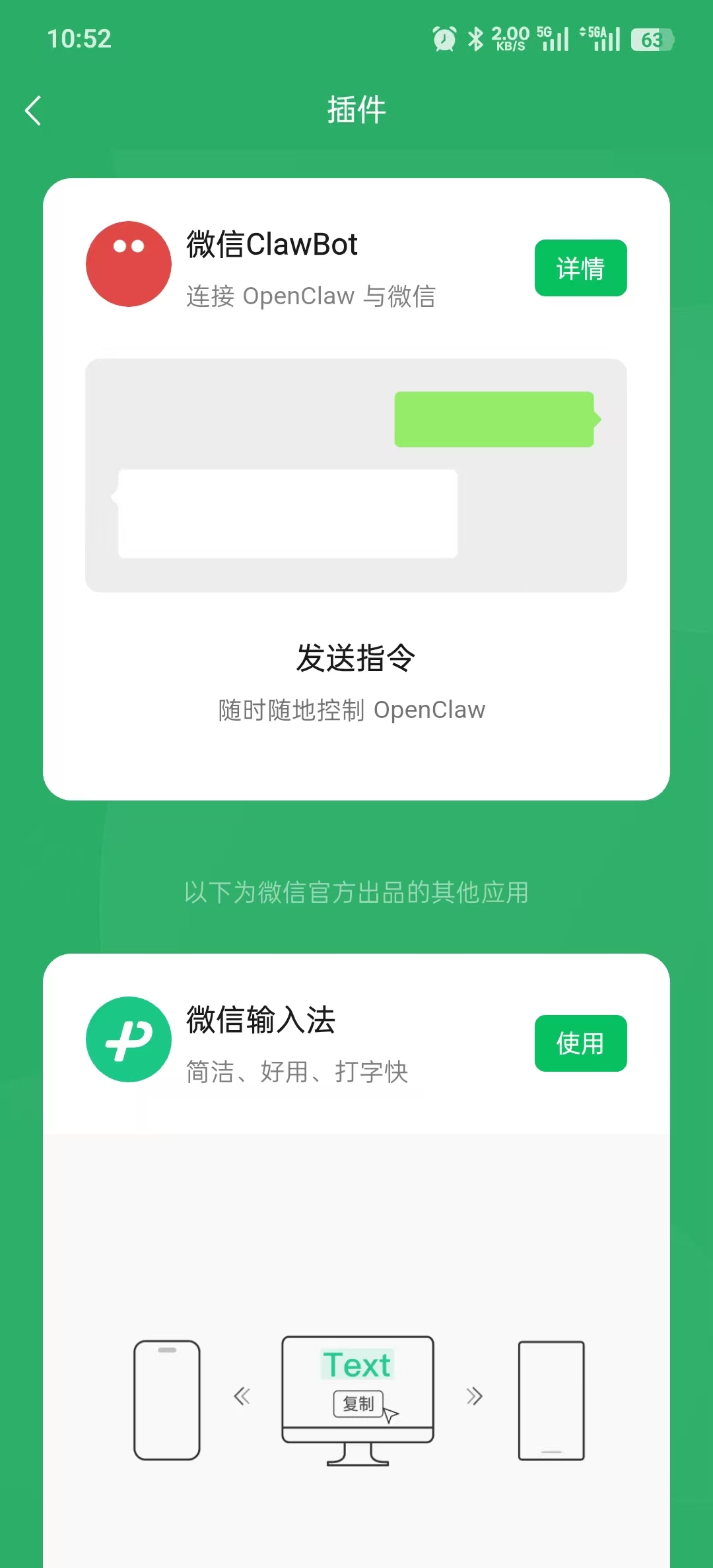
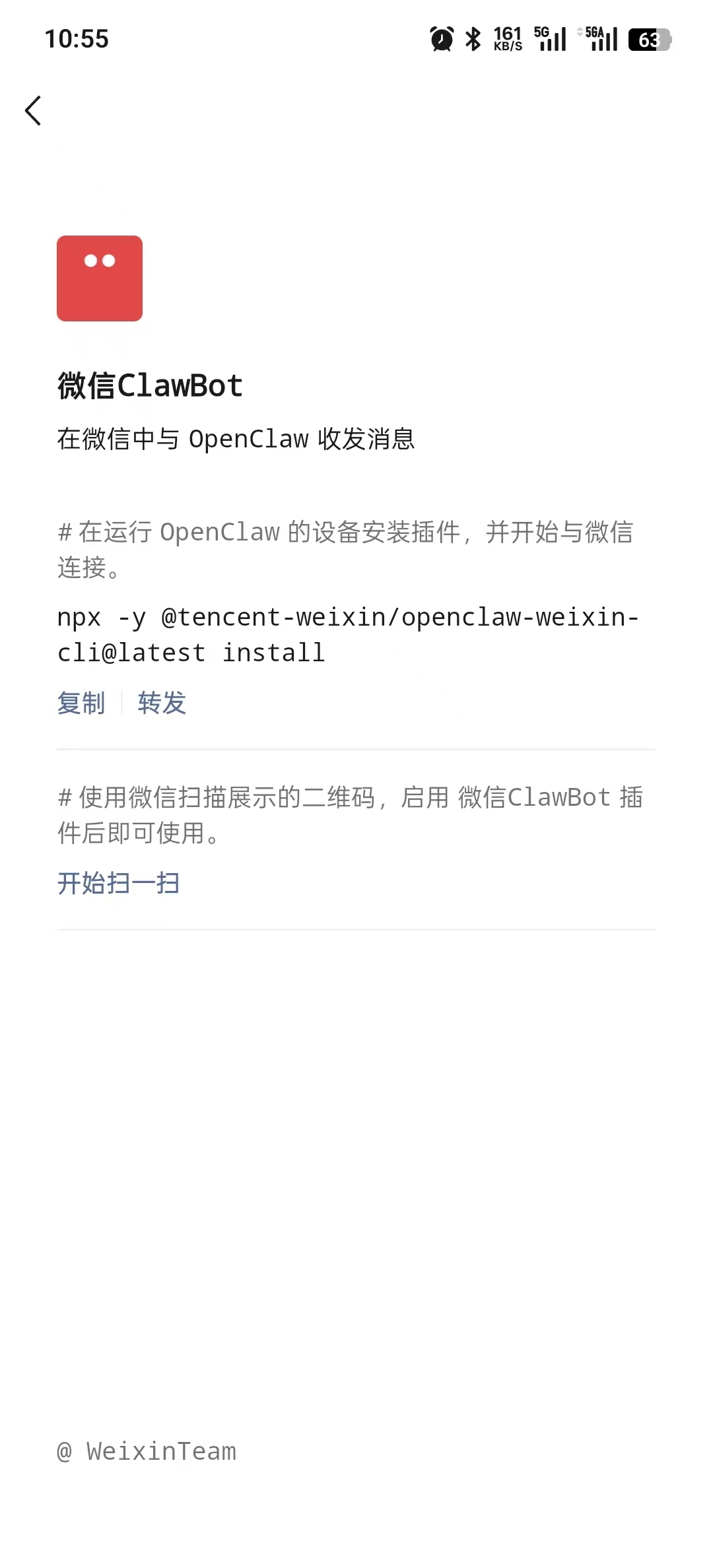
ClawBot is under WeChat Settings -> Plugins. In some versions it may be under “Me -> Settings -> Features -> Plugins.” If WeChat ClawBot opens, enter the detail page. If it does not appear, update WeChat and wait for rollout.
The detail page provides an npx command. A common community shape is below, but use the exact command from your page:
npx -y @tencent-weixin/openclaw-weixin-cli@latest installCopy the whole line into the terminal on the machine running OpenClaw.
During execution, the terminal shows a QR code. Scan it with WeChat to bind.
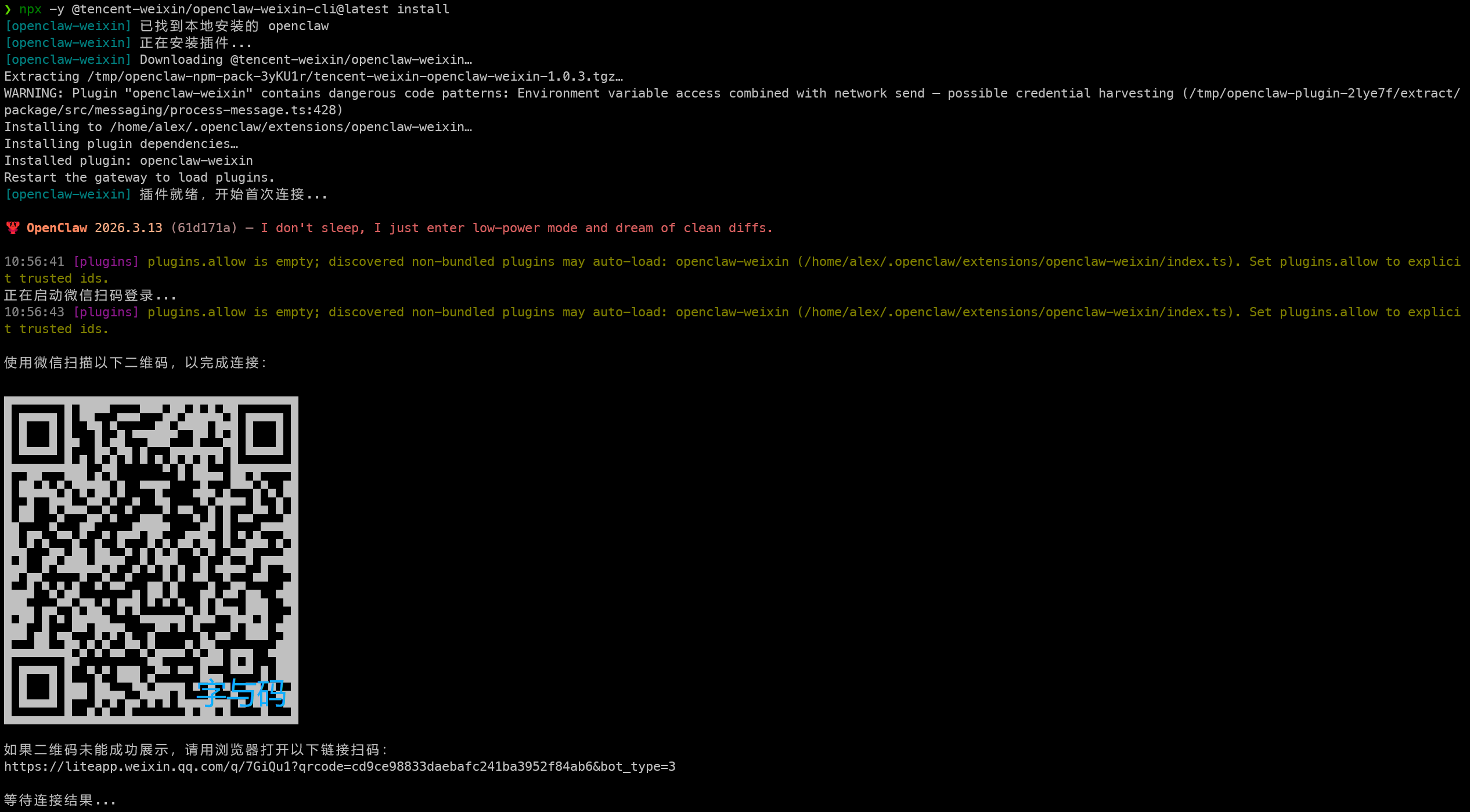
When the terminal reports success, the channel is connected.

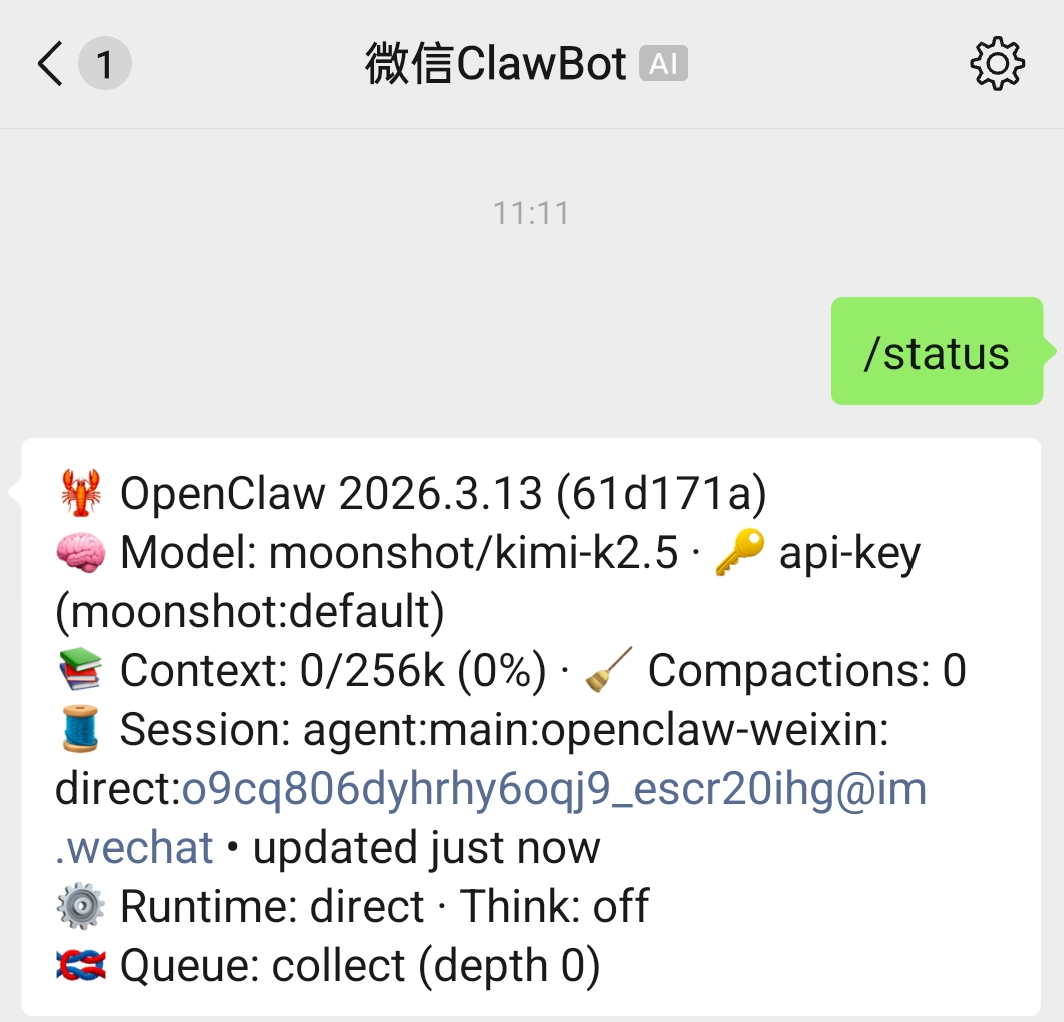
Send /status in WeChat to check gateway status.
Other Channels
The same Gateway can connect to WhatsApp, Telegram, Discord, iMessage, and other channels. See Channels. For who can message your agent and how pairing is disabled, read the Getting Started section on Pairing and safety.
Summary
The basic path is:
install script -> token -> openclaw onboard --install-daemon -> gateway status / dashboard -> run npx from WeChat plugin -> scan QR codeAfter that, changing models, adding skills, and connecting other channels are easier than the first setup.
For edge parameters, RPC, gateway call, Tailscale, Bonjour, and other topics, read the official documentation. The directory is also accessible from llms.txt. If you track beta, watch Releases and avoid mixing mismatched gateway and CLI versions.
Follow ZiCode on WeChat
If this post was useful, you can follow later updates on WeChat as well.

X / Twitter
Follow @ax2_zicode
Faster technical notes, short thoughts, and new-post alerts are posted on X.