
Inside The QVeris IDE Plugin: OAuth, MCP Wiring, And Rules Injection
Inside The QVeris IDE Plugin: OAuth, MCP Wiring, And Rules Injection
This article is a retrospective on building the official QVeris IDE plugin. The original problem looked simple: after installing the plugin in Cursor or VS Code, users should not have to manually configure API keys, MCP settings, or rule files. Ideally, they log in once and the plugin wires everything up.
Once implementation started, it quickly became clear that this is not just “add a login button.” Browser callbacks, secret storage, host-specific config paths, rule-file injection, first-use guidance, and upgrade behavior all matter. The plugin became useful because these unglamorous pieces were connected end to end.
Not A Login Plugin, A Wiring Plugin
From the README, the flow sounds simple: log in to QVeris, obtain an API key, install MCP, write rules, and start using tools in AI Chat.
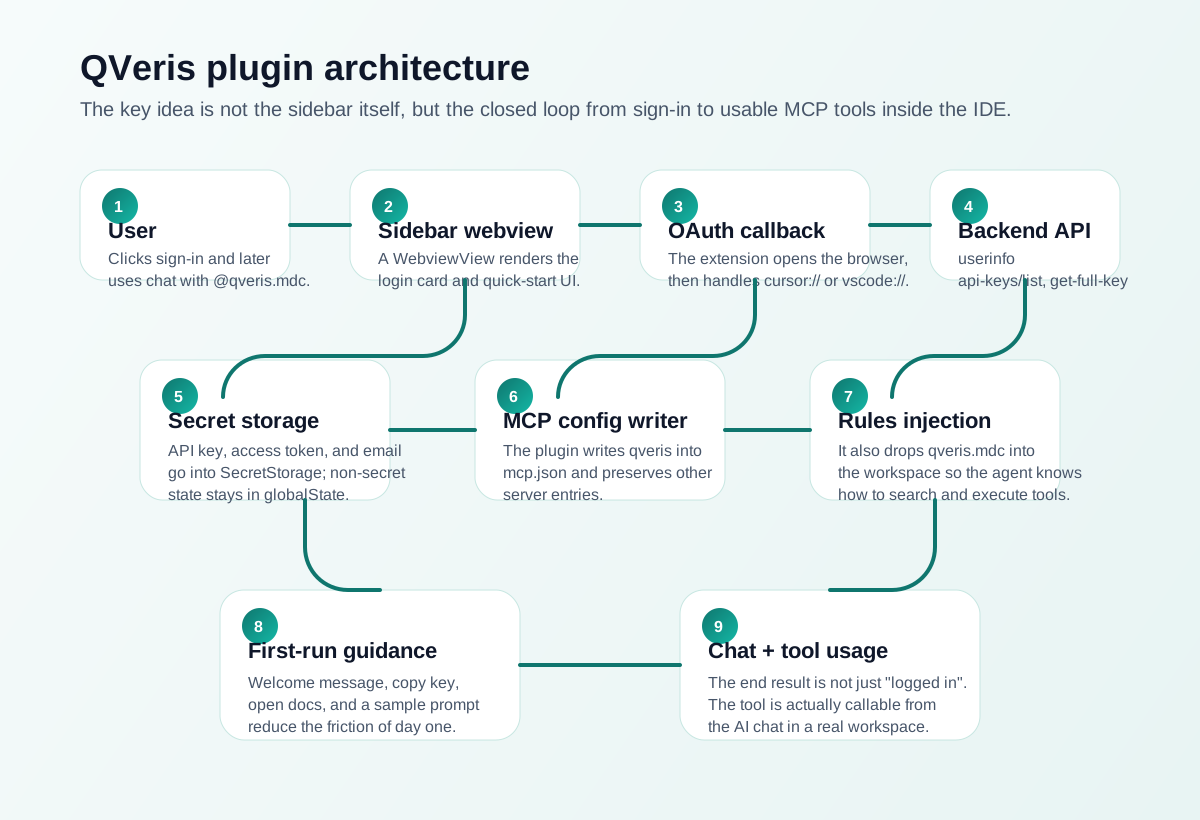
More precisely, the plugin performs wiring:
- Send the user from IDE to browser for authentication, then return the result to the IDE.
- Extract useful data such as email, access token, and API key.
- Write the API key into the IDE’s
mcp.json, so the MCP server becomes callable. - Inject rule files into the workspace, so the AI knows how to search tools, execute tools, and generate code with tool IDs.
Many plugins stop after authentication. QVeris intentionally continues to the point where the capability is actually connected.
Reading The Design From package.json
The extension is a standard VS Code extension:
engines.vscodetargets the VS Code extension API.- Activation uses
onStartupFinished. - It registers an Activity Bar container,
qverisAi. - It contributes a webview Home panel.
- It registers commands for login, API key copying, refreshing status, viewing rules, and trying sample prompts.
This maps directly to VS Code contribution points such as viewsContainers, views, commands, and configuration. The implementation avoids inventing a new plugin framework. It uses WebviewViewProvider, registerUriHandler, context.secrets, and globalState.
That route is not flashy, but it is stable and compatible with multiple IDE hosts built on the VS Code extension model.
The Real Core Is The OAuth Callback
The sidebar is only the entry point. The critical part is how browser login returns to the IDE.
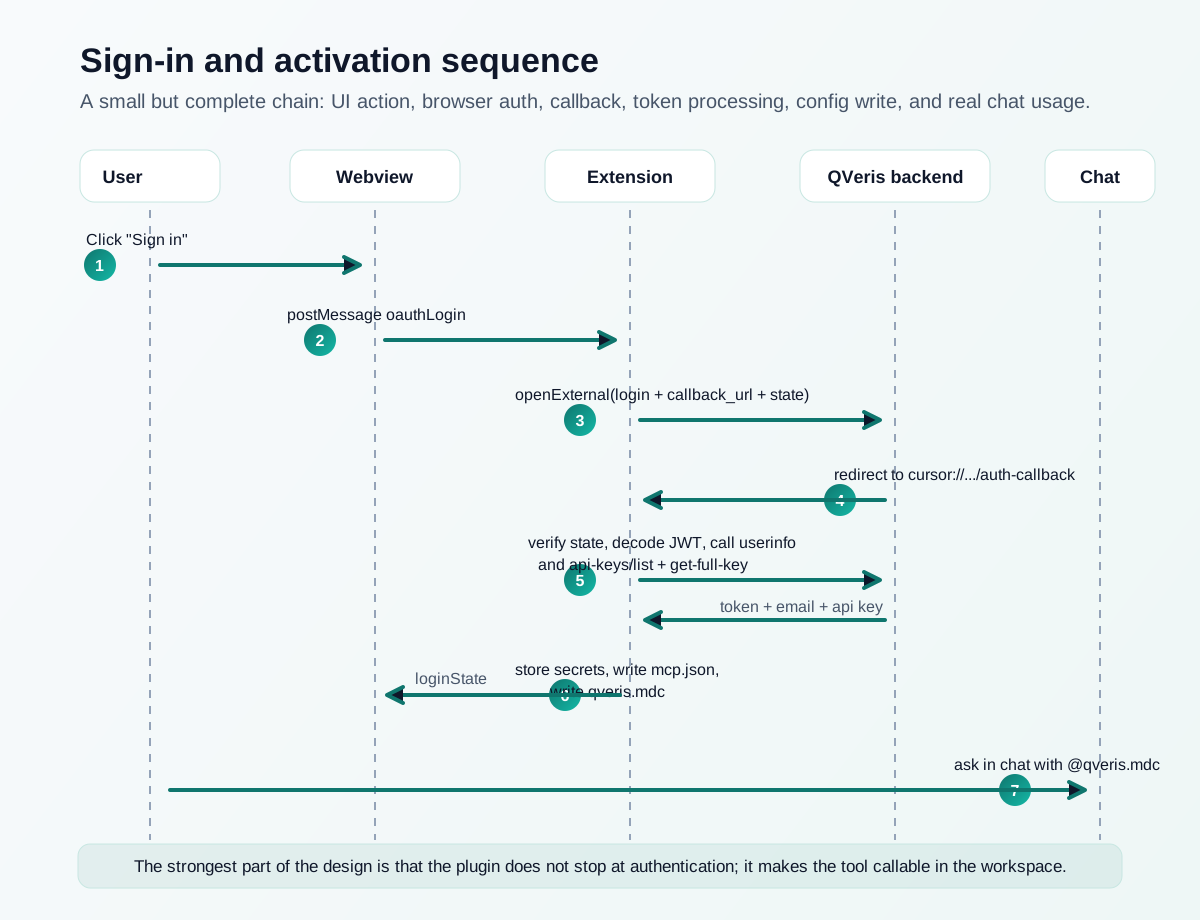
The implementation follows this shape:
const scheme = getIdeScheme();
const callbackUrl = `${scheme}://QverisAI.qveris-ai/auth-callback`;
const fullUrl = `${loginUrl}?f=${encodeURIComponent(state)}&callback_url=${encodeURIComponent(callbackUrl)}`;
Two choices matter here.
First, different IDE hosts are handled explicitly: vscode, cursor, trae, kiro, codebuddy, lingma, qoder, and others. This is not only a Cursor plugin.
Second, the authentication flow uses a common and debuggable pattern: openExternal opens the browser, login succeeds, a custom URI scheme returns to the IDE, and registerUriHandler receives it.
This is simple and robust, but URI scheme, encoding, and state validation can be tricky. Logging the URI’s scheme, authority, path, and query is not decoration. It is how these callback problems are debugged.
Login Produces Three Things
From the user’s point of view, login is one action. From the extension’s point of view, it yields three kinds of data:
- Access token, used to call QVeris backend APIs
- Email, shown in the UI
- API key, used to configure MCP
The flow is roughly:
- Read
access_tokenand state from callback URI. - Validate state to reduce CSRF risk.
- Try to decode email from JWT.
- If email is missing, request
/rpc/v1/auth/userinfo. - Request API key list and full key.
- Store email, access token, and API key separately.
The email path has fallbacks because real backend fields are not always as stable as ideal contracts. API key retrieval also avoids creating a new key from the client unless needed, which keeps the permission boundary clearer.
SecretStorage And globalState
Sensitive information belongs in context.secrets:
- API key
- Access token
- Email when appropriate
Non-sensitive helper state belongs in globalState:
- Version
- Session ID
- Last written email
- Rule-file state
This is much safer than placing everything in ordinary state. API keys should not leak into workspace files, logs, or plain configuration.
There is still room to improve, such as listening to SecretStorage.onDidChange to refresh UI automatically and implementing fuller token lifecycle handling. But for the first phase, the priority was to make the end-to-end flow reliable.
Writing mcp.json Is The Hard Part
Writing one JSON snippet sounds simple until you support multiple hosts.
Different IDEs use different paths and sometimes different root keys:
- Cursor, Trae, Kiro, Codebuddy, Lingma, and Qoder use
mcpServers. - VS Code workspace scenarios may use
servers.
The desired core config looks like:
{
  "mcpServers": {
    "qveris": {
      "command": "npx",
      "args": ["@qverisai/mcp"],
      "env": {
        "QVERIS_API_KEY": "<your-api-key>"
      }
    }
  }
}
The implementation also avoids damaging user configuration:
- Preserve existing MCP servers and update only
qveris. - On logout, replace the API key with a placeholder instead of deleting unrelated structure.
For users who already hand-edited MCP config, a plugin breaking their other servers is worse than missing a small convenience feature.
Rules Injection Is The Real Differentiator
Writing mcp.json connects the service. Writing rules explains the service to the AI.
In Cursor, the plugin writes .cursor/rules/qveris.mdc. Other hosts get their own rule locations. The plugin also handles upgrades: it compares the current version with the previously stored version and can replace old rules when necessary.
This matters because MCP installation does not automatically mean the model knows how to use it. The model needs guidance on when to search tools, when to execute tools, and when to generate code using a discovered tool_id.
That makes the plugin less like a config generator and more like a behavior scaffold.
User Path
For ordinary users, the desired path is short:
- Install the extension and open the
QVeris AIsidebar. - Click
Sign in with Browser. - Complete browser login.
- Confirm the IDE has written
mcp.json. - In Cursor, confirm
.cursor/rules/qveris.mdcexists. - Open Chat and describe the task, optionally referencing
@qveris.mdc.
Example prompt:
Find a tool that can get real-time cryptocurrency prices, then use it to query the current BTC price. @qveris.mdcAnother:
Find a tool that can get stock quotes, verify it works, then generate Python calling code. @qveris.mdcBoth follow the intended path: search tools, execute tools, then decide whether to generate real code.
What Is Worth Learning From This Implementation
The hard part is not the login page. The hard parts are:
- Does the browser callback return to the correct IDE scheme?
- Where should MCP configuration be written for each host?
- What happens when login succeeds but the AI still does not know how to use tools?
- Should old rule files be replaced after plugin upgrades?
- Can the first example prompt produce a quick positive result?
Each problem is small alone. Together, they decide whether a plugin feels usable or always “almost works.”
What Still Needs Improvement
Several things are worth improving:
- Tighten secret scanning and packaging hygiene.
- Split an oversized
extension.tsinto clearer modules. - Improve token lifecycle and UI refresh behavior.
- Add more automated tests around config file merging.
- Make the first-use path even more explicit.
The main lesson remains: an official IDE plugin should fill the last-mile gaps, not only expose a login surface.
Follow ZiCode on WeChat
If this post was useful, you can follow later updates on WeChat as well.

X / Twitter
Follow @ax2_zicode
Faster technical notes, short thoughts, and new-post alerts are posted on X.