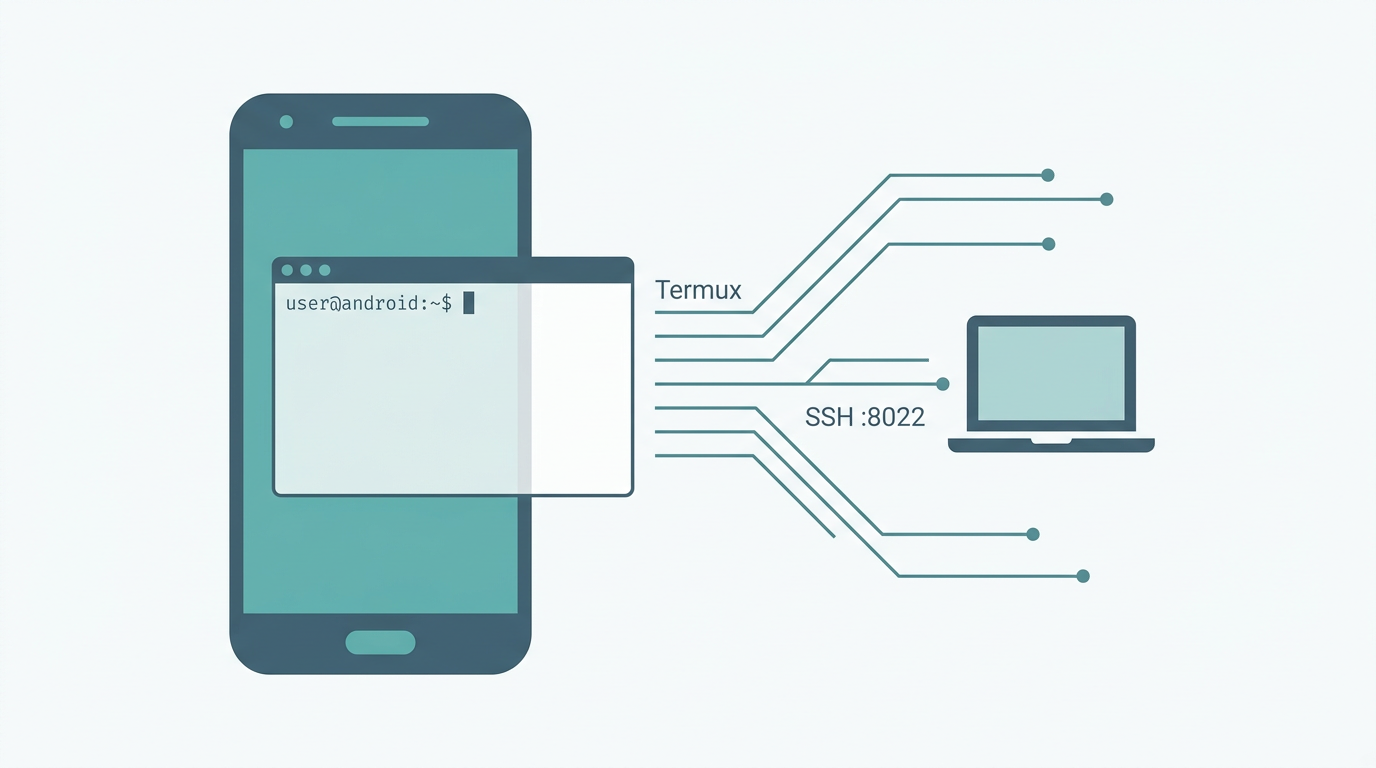
Running An OpenSSH Server In Termux
Running An OpenSSH Server In Termux
Termux can run a Linux terminal on Android, including a minimal Linux userland and package management through pkg / apt. After installing openssh, you can log into the phone over the local network with ssh, which is much more convenient than typing on a small phone screen.
The steps below follow the direction of the termux.dev documentation and the default OpenSSH packaging in Termux. The server listens on port 8022 by default, as seen in the Termux openssh sshd_config patch. I also include common troubleshooting notes from actual use.
Install Termux
The Termux Wiki says this clearly: use the F-Droid build, not the old Google Play version. I downloaded the APK from GitHub releases, which should be equivalent to the F-Droid build. Pay attention to CPU architecture. Most modern phones are arm64, for example Qualcomm Snapdragon devices. If unsure, search for your phone’s CPU architecture first.
Install OpenSSH And Prepare The Account
Inside Termux:
pkg update
pkg install openssh
After installation, the terminal may print host-key randomart and mention that if you want ssh-agent, you can install termux-services, a runit-based service manager, and enable services with sv-enable. This does not conflict with manually typing sshd; it is simply another path for service startup.
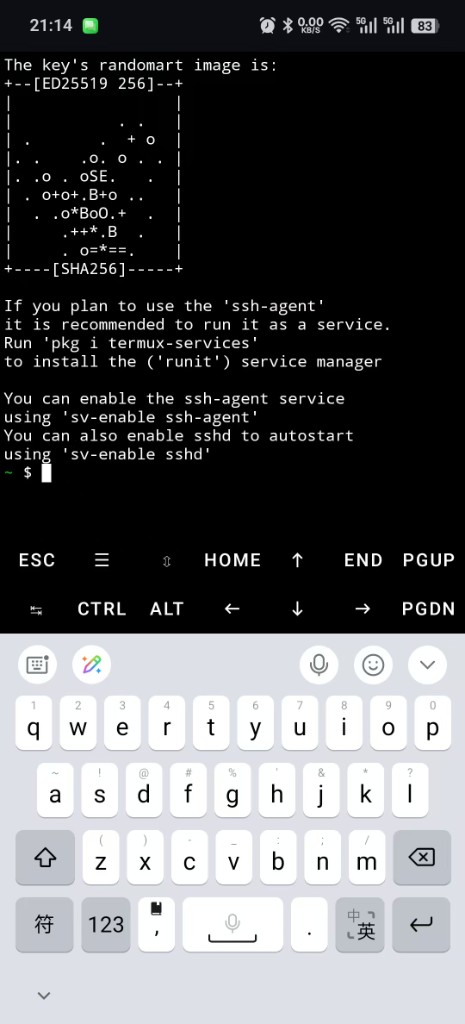
If you want to use service management:
pkg install termux-services
sv-enable sshd
# Optional, if you need a resident ssh-agent:
# sv-enable ssh-agent
Use the actual prompt from your local pkg install openssh as the final reference. If you do not need runit for now, running sshd manually is enough.
The openssh package includes both the client ssh and the server sshd. Termux is a single-user environment. The login name is usually what whoami prints, such as u0_a***. There is no SSH password by default, so set one yourself:
passwdFollow the prompt and choose a strong password. This only affects network-side password login. It does not add a lock to the Android system account.
Host Keys
If running sshd reports an error such as no hostkeys available, host keys have not been generated yet. Run:
ssh-keygen -AThen start sshd again. Community issues often mention this as the standard fix. Host keys should be under $PREFIX/etc/ssh/; in Termux, PREFIX is usually /data/data/com.termux/files/usr.
Start The SSH Server
sshdIf there is no error, the daemon is listening in the background. Termux’s packaged sshd listens on 8022 by default, not 22, because low ports are usually privileged on Android. Confirm with:
ss -nlt
# or
nmap -p 8022 localhost
If 8022 is already in use, an old sshd process may still be running. Use pkill sshd first, or check which program occupies the port.
Connect From A PC
On the phone, find the IP address. On Wi-Fi, ip addr usually shows the wlan0 address. In hotspot mode, the gateway may be something like 192.168.43.1; use your actual output. Use the username printed by whoami inside Termux. Do not assume root exists or is allowed.
On the PC:
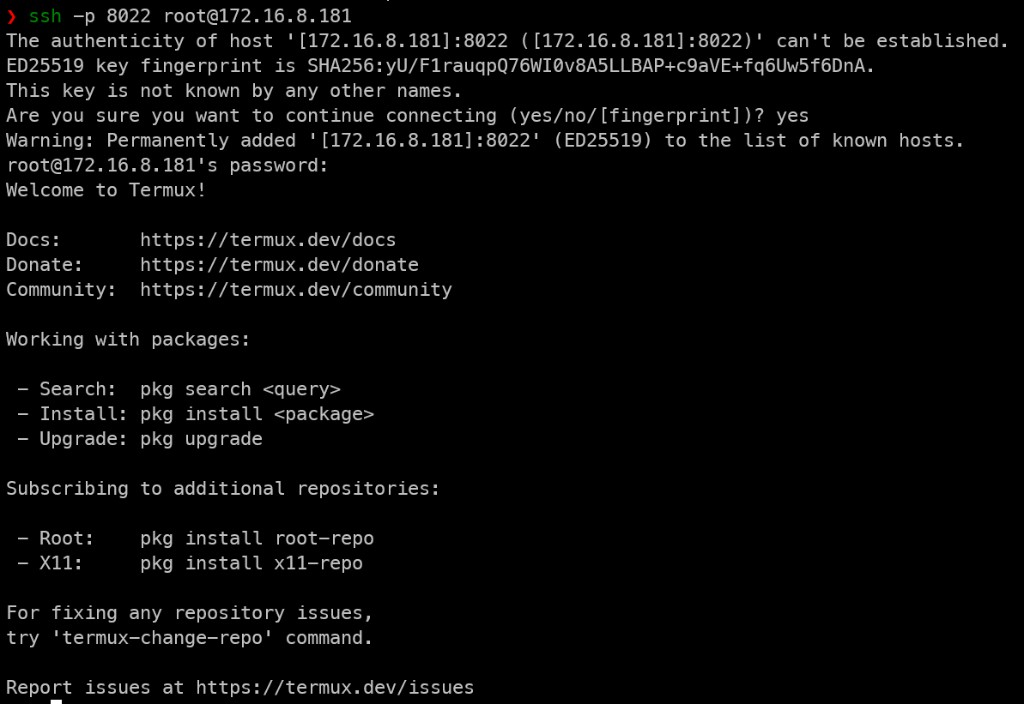
ssh -p 8022 user@phone-ipThe first connection asks you to confirm the host fingerprint. Type yes to write it into known_hosts, then enter the password set by passwd. The screenshot below shows a PC terminal connected to Termux on a phone. The username in your command should be your own.
A better approach is to generate a key pair on the PC and put the public key into ~/.ssh/authorized_keys inside Termux. Then you can reduce or disable password login. Follow normal OpenSSH permission expectations: directory 700, file 600.
Advanced configuration lives in $PREFIX/etc/ssh/sshd_config. You can change the port, password login, and other settings there. Restart sshd after changes.
Android Permissions And Background Behavior
Termux is not a system service. Battery policy, background cleanup, and screen-off sleep may kill sshd or stop it from accepting new connections. Vendor settings differ, but check these categories under Android Settings for the Termux app.
Battery and background
- Set battery optimization to unrestricted, do not restrict, or the equivalent vendor option.
- Allow background activity. On some Android builds, also allow related startup/background options if present.
Task switcher and notifications
- In the recent-apps view, lock the Termux card if your launcher provides a lock icon. This reduces the chance of one-click cleanup killing it.
- Keep notification permission enabled. A persistent Termux notification can help the system recognize that it is still in use.
Network and sleep
- If your device has a Wi-Fi option such as “keep Wi-Fi during sleep” or “network stays connected when screen is off,” enable it for long SSH sessions.
- For mobile data, remember carrier NAT and hotspot policies. Local debugging is easier on Wi-Fi or phone hotspot.
Advanced options
- With Termux:API,
termux-wake-lockcan acquire a wake lock to reduce CPU sleep problems. It still cannot prevent the user from manually closing Termux. - For startup, use the Termux:Boot add-on. Put scripts under
~/.termux/boot/to runsshdorsv-enablelogic. Battery whitelist settings are still needed.
One reality remains: if the user force-stops Termux, reboots the phone, or enables extreme battery saving, SSH will disconnect. You need to enter Termux again or wait for the boot script.
Practical Constraints
- Manual path: Open Termux when needed and run
sshd. Ifsv-enable sshdis used, it depends on termux-services behavior. - Automatic path: Use
termux-servicesplussv-enable sshd, or Termux:Boot plus a startup script, together with Android battery/background allowlists.
Security note: Think carefully before exposing sshd to public networks or unfamiliar Wi-Fi. At least use strong passwords or key-only login, consider changing the port, and restrict access where possible. SSH on a phone is mainly a convenient local-network tool, not a default public server.
Summary
| Step | Command or note |
|---|---|
| Install | pkg update -> pkg install openssh |
| Password | passwd |
| Host keys | If needed, ssh-keygen -A |
| Start | sshd |
| Connect | ssh -p 8022 $(whoami)@phone-ip, using the Termux username |
| Optional autostart | pkg install termux-services -> sv-enable sshd |
| More stable background | Battery unrestricted, allow background, lock recent task, optional wake lock or Termux:Boot |
For more complete ecosystem details, use the Termux Wiki and the migrating termux.dev documentation. If a command behaves differently in your current Termux version, check pkg show openssh and the official repository issues.
Follow ZiCode on WeChat
If this post was useful, you can follow later updates on WeChat as well.

X / Twitter
Follow @ax2_zicode
Faster technical notes, short thoughts, and new-post alerts are posted on X.