
Docker in WSL: The Slow Part Is Usually the Mount Boundary
When running Docker on Windows, many people assume it must be worse than native Linux. Sometimes that is true. Sometimes it is wildly misleading.
What I see more often is this: Docker Desktop’s WSL backend is not the real problem. The development experience is slowed down by mount paths. Code lives on a Windows partition, containers run in Linux, and hot reload plus dependency installation move small files across the boundary all day. Then Docker gets blamed for a path decision.
This article uses a normal API service as the thread: FastAPI backend, PostgreSQL, Redis, and a frontend dev server. The goal is not to teach Docker basics. It is to separate several issues that are often mixed together in WSL: who manages the engine, where code should be mounted from, whether dependencies belong in volumes, why disk usage grows, and which commands to check first.
Running docker in WSL Does Not Mean Docker Is Installed Inside Ubuntu
With Docker Desktop’s WSL2 backend enabled, a common workflow is: you type docker compose up inside Ubuntu, but the engine is managed by Docker Desktop. Docker’s documentation describes this model clearly: WSL2 provides the Linux kernel, filesystem sharing, fast startup, and dynamic resource allocation; Docker Desktop connects the Linux container experience to the Windows desktop.
So do not think of it as “I installed a complete Docker daemon inside Ubuntu.” A better picture is:
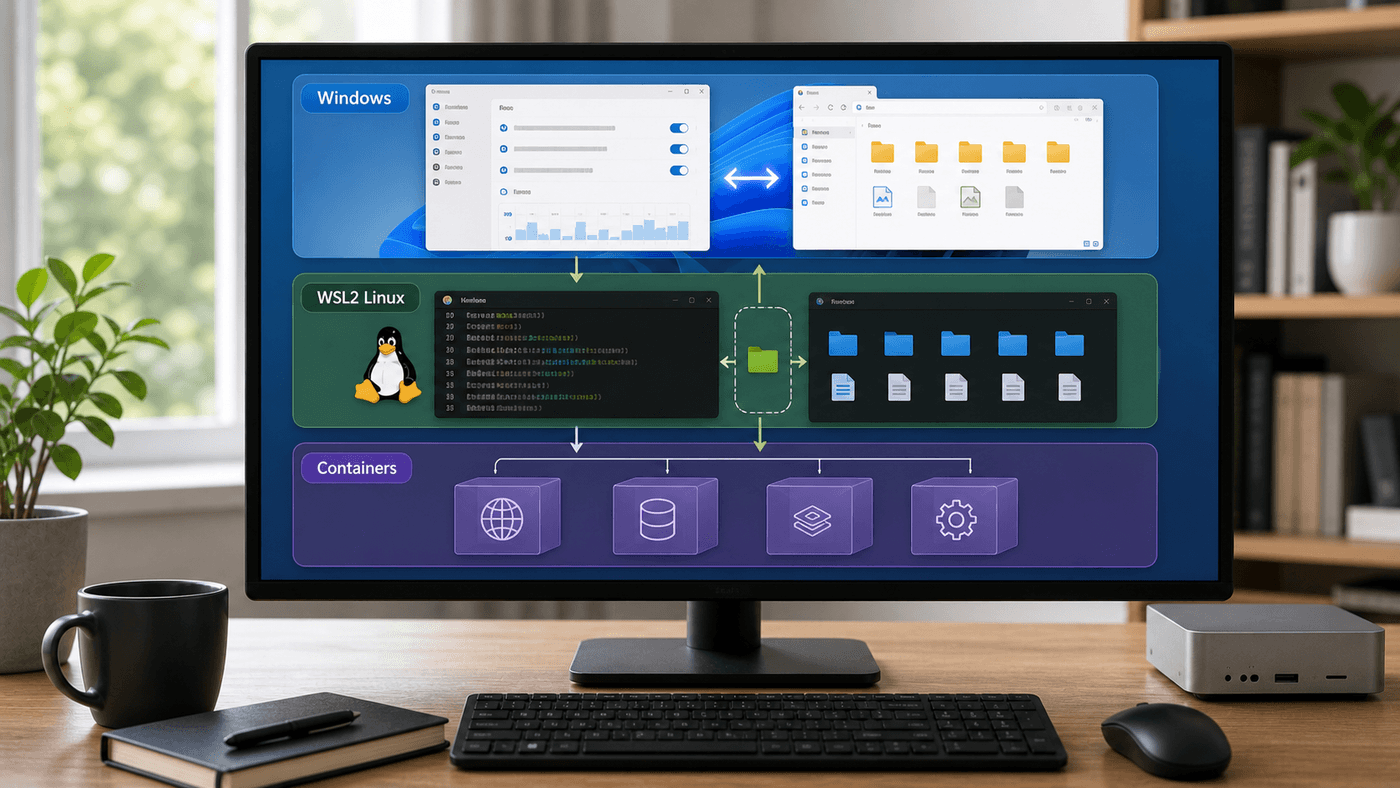
Once these layers are separated, many problems become simpler: where commands are typed, who manages the engine, where source code lives, and which side container files come from. Whether Docker is slow usually depends on whether this chain detours across a filesystem boundary.
Your Ubuntu distribution owns the shell, source code, and remote editor environment. Docker Desktop owns the engine, images, container lifecycle, UI, and parts of network integration. Internal distributions such as docker-desktop exist, but you normally do not need to enter them.
Check the basics:
docker version
docker context ls
docker info | sed -n '1,80p'
Normally, docker version shows both client and server. docker context ls usually shows a current context like desktop-linux.
If Ubuntu says docker is missing, first check Docker Desktop settings and confirm WSL Integration is enabled for your distribution. Do not immediately run apt install docker.io inside Ubuntu. Two Docker installations mixed together make later debugging painful.
The Most Common Bad Compose File
I have seen many docker-compose.yml files like this:
services:
  api:
    build: .
    command: uvicorn app.main:app --host 0.0.0.0 --reload
    volumes:
      - /mnt/d/work/my-api:/app
    ports:
      - "8000:8000"
It can run, but it is not a good habit.
If the code is under /mnt/d/work/my-api, /app inside the container comes from a Windows partition. The API hot reload watches it, Python imports it, uvicorn --reload repeatedly stats it, and pip or uv may write caches there. Every step crosses the Windows/WSL filesystem boundary.
A better version is simple: put the project in the WSL filesystem, such as ~/work/my-api, and run compose from there:
services:
  api:
    build: .
    command: uvicorn app.main:app --host 0.0.0.0 --reload
    working_dir: /app
    volumes:
      - .:/app
    ports:
      - "8000:8000"
The magic is not .:/app. The important part is that the current directory is inside the WSL Linux filesystem.
cd ~/work/my-api
docker compose up --build
Now the bind mount source is a Linux filesystem, and the container is Linux too. The hot-reload path is much shorter. Docker Desktop documentation and VS Code Remote Containers performance guidance both repeatedly recommend placing source code in the WSL2 filesystem instead of mounting it from the Windows filesystem.
Three Mount Types, Three Jobs
For local development, three patterns are common:
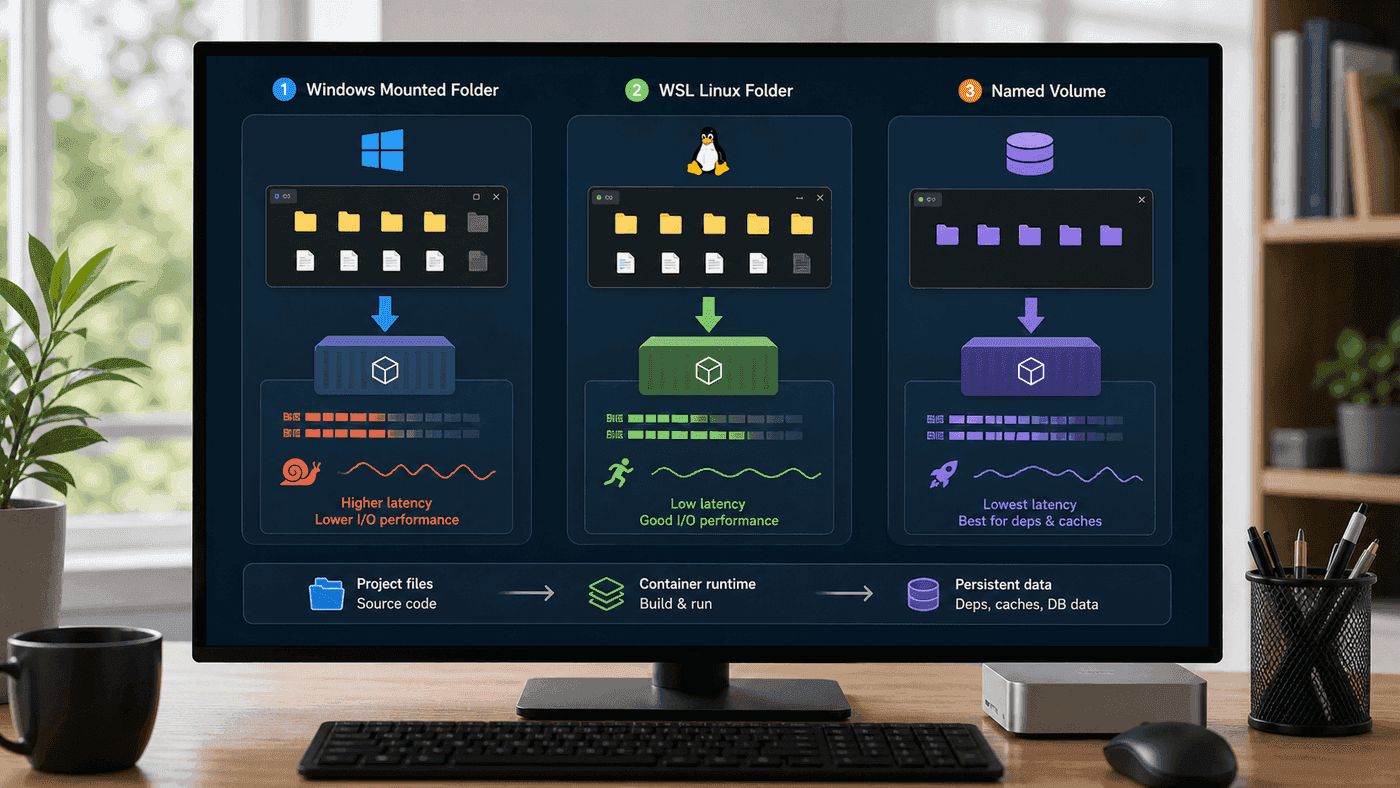
None is universally best. The key is to put files where each pattern works best: source code needs editing and hot reload, dependency directories need stable container-side storage, and database data needs persistence and isolation. Mix them together and problems contaminate each other.
The first pattern is bind mounting from /mnt/c or /mnt/d. It is convenient for Windows tools, but hot reload, dependency installation, and small-file scans are slower. Avoid it unless the service barely reads and writes source files or Windows tools are the main workflow.
The second pattern is bind mounting from ~/work/project. For Web services, Python APIs, and Node services, this is usually the right development default. Source code stays in WSL, containers see it quickly, and Windows can still access it occasionally with explorer.exe ..
The third pattern is a named volume. It is good for dependencies, database data, and build caches. For a Node project, bind mount the source code but put node_modules in a volume:
services:
  web:
    image: node:22
    working_dir: /app
    command: npm run dev
    volumes:
      - .:/app
      - web_node_modules:/app/node_modules
    ports:
      - "5173:5173"

volumes:
  web_node_modules:
This means the host does not directly manage container node_modules. Large numbers of dependency files stay in a Docker volume, while source code stays in WSL. The tradeoff is that node_modules will not appear in the host directory, and you need to know how to clear the volume:
docker compose down -v
docker compose up --build
Python projects are similar. During development, I prefer the virtual environment to be inside the container or a volume rather than bind mounting the host .venv. A host .venv and container .venv mixed together can fight over paths, platform wheels, and interpreter versions.
If Hot Reload Is Slow, Check the Path First
Suppose a FastAPI service takes five seconds to reload after saving a file. Do not suspect uvicorn first. Look inside the container and check where /app comes from:
docker compose exec api sh
pwd
mount | grep ' /app '
Then on the WSL host:
pwd
df -T .
If the path is under /mnt/d, move the project first. Re-test hot reload after moving. Many times no framework parameter is needed.
If the project is already under ~/work, then inspect watcher limits and ignored directories. Node and Python watchers dislike huge directories. Do not make hot reload watch .git, node_modules, .venv, or dist.
Vite, Next, Uvicorn, and WatchFiles all have their own settings, but the principle is the same: keep the source directory small, and do not scan generated or dependency directories.
A FastAPI service can start like this:
uvicorn app.main:app \
  --host 0.0.0.0 \
  --port 8000 \
  --reload \
  --reload-dir app
For Node projects, keep dependencies in a volume and make the watcher look only at real source directories such as src, pages, or app.
Database Volumes Should Not Live on a Windows Partition
Development compose files sometimes contain:
services:
  postgres:
    image: postgres:16
    volumes:
      - /mnt/d/docker-data/postgres:/var/lib/postgresql/data
I do not recommend it.
A database data directory is not ordinary source code. It cares about permissions, locks, fsync, rename semantics, and many small writes. It may appear to work in development, but strange failures can appear after power loss, container restarts, or permission changes.
Use a named volume:
services:
  postgres:
    image: postgres:16
    environment:
      POSTGRES_PASSWORD: example
      POSTGRES_DB: app
    volumes:
      - postgres_data:/var/lib/postgresql/data
    ports:
      - "5432:5432"

volumes:
  postgres_data:
Back up with database tools:
docker compose exec postgres pg_dump -U postgres app > backup.sqlRestore:
cat backup.sql | docker compose exec -T postgres psql -U postgres appDo not expose database internals to a Windows partition just because you want to see the data folder in File Explorer. Visibility is not maintainability.
Growing Disk Usage Is a Two-layer Problem
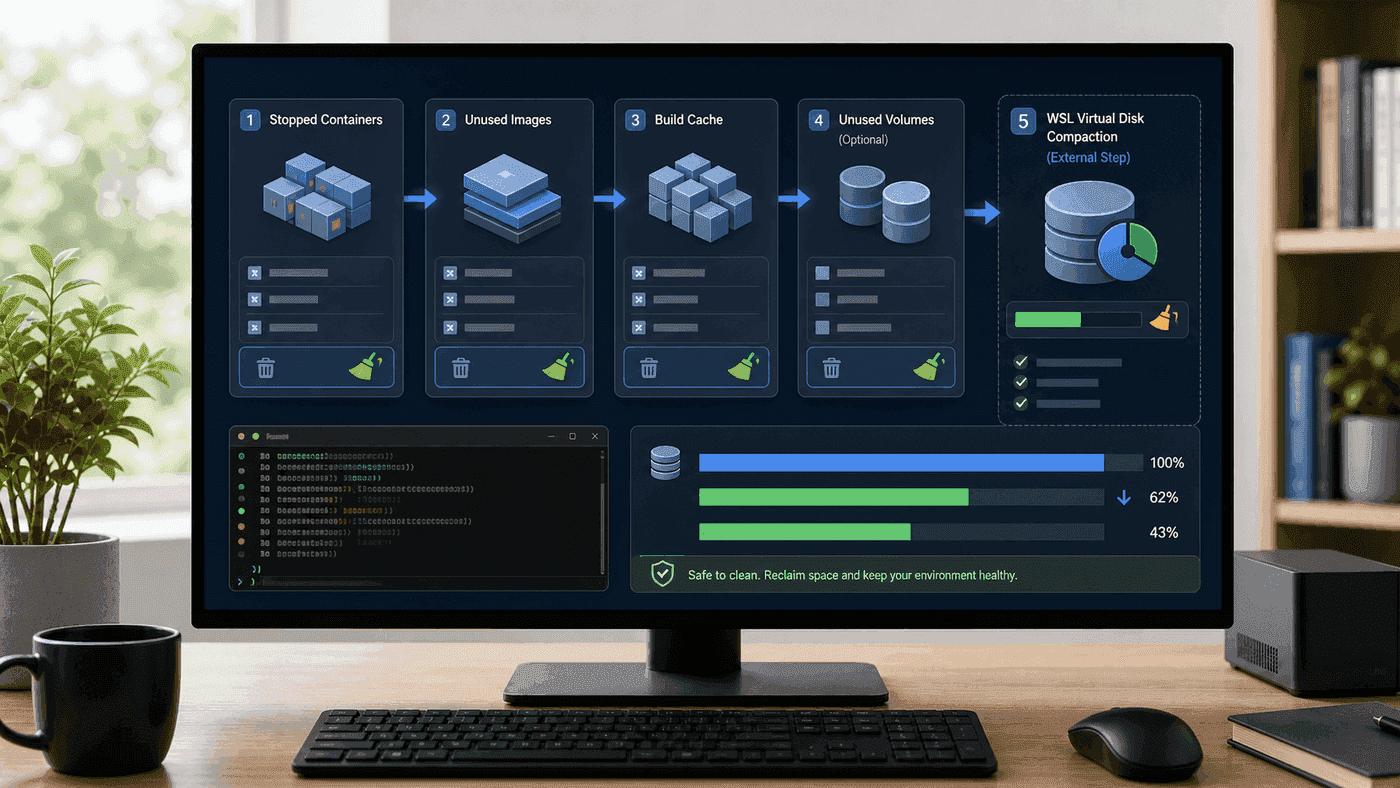
With Docker Desktop’s WSL backend, images, containers, and volumes use storage managed by Docker. Add the WSL distribution’s own ext4.vhdx, and C drive or another storage location can grow steadily.
First inspect Docker:
docker system df
docker image ls
docker volume ls
Clean clearly unnecessary resources:
docker container prune
docker image prune
docker builder prune
If all unused resources can be removed:
docker system pruneBe careful with -a and --volumes:
docker system prune -a --volumesThis removes unused images and unused volumes. Development databases, object stores, and local queues may live in those volumes. Inspect first:
docker volume ls
docker volume inspect postgres_data
Cleaning Docker resources does not mean Windows immediately gets disk space back. WSL2 VHDX files grow, and reclaiming host disk space often requires compacting. The rule of thumb here is: first clean useless images, containers, builder cache, and volumes from inside Docker; after guest filesystem space is released, consider VHDX-level compaction.
Logs and Debugging: Do Not Only Click in Docker Desktop
Docker Desktop UI is good for a high-level view. Commands are faster for real debugging.
Service does not start:
docker compose ps
docker compose logs api --tail=200
docker compose config
Image build is slow:
DOCKER_BUILDKIT=1 docker build --progress=plain .
docker builder du
Port is unreachable:
docker compose port api 8000
curl -v http://localhost:8000/health
DNS inside the container looks wrong:
docker compose exec api getent hosts github.com
docker compose exec api cat /etc/resolv.conf
Mounts are not what you expected:
docker compose exec api mount
docker inspect <container_id> --format '{{json .Mounts}}' | jq
Put these commands in docs/dev.md. Do not make every teammate click around Docker Desktop guessing the same problem.
A Local Compose Structure I Recommend
A stable local development layout looks like this:
~/work/my-product/
  api/
    Dockerfile
    docker-compose.yml
    app/
    pyproject.toml
  web/
    package.json
    src/
Backend:
services:
  api:
    build: .
    working_dir: /app
    command: uvicorn app.main:app --host 0.0.0.0 --reload --reload-dir app
    volumes:
      - .:/app
      - api_venv:/app/.venv
    ports:
      - "8000:8000"
    depends_on:
      - postgres

  postgres:
    image: postgres:16
    environment:
      POSTGRES_PASSWORD: example
      POSTGRES_DB: app
    volumes:
      - postgres_data:/var/lib/postgresql/data

volumes:
  api_venv:
  postgres_data:
Frontend:
services:
  web:
    image: node:22
    working_dir: /app
    command: sh -c "npm install && npm run dev -- --host 0.0.0.0"
    volumes:
      - .:/app
      - web_node_modules:/app/node_modules
    ports:
      - "5173:5173"

volumes:
  web_node_modules:
If running npm install on every start is too slow, install dependencies manually once or build a dev image. The important point is not to bind mount dependency directories from a Windows partition.
When Not to Use Docker Desktop
There are scenarios where I would consider installing Docker Engine directly inside WSL or using another container runtime.
For example, CI should closely match Linux servers; you may not need the Docker Desktop UI; you may not want Docker Desktop settings and updates to affect you; or company licensing policy may not allow Docker Desktop. In that case, enable systemd in the WSL distribution and install Docker Engine there.
But this is not my default recommendation here. It gives you more maintenance responsibility: daemon, permissions, startup, image storage, networking, and upgrades. For most desktop developers, Docker Desktop + WSL Integration is good enough if path and volume strategy are correct.
I ask these questions first:
Is code under ~/work?
Are dependency directories in volumes or container directories?
Is database data in named volumes?
Does hot reload ignore large directories?
Is there a fixed Docker disk-cleanup process?
Once these are right, it is worth discussing runtime replacement.
One Practical Rule
Docker in WSL is not mysterious. When it feels slow, do not blame virtualization first, and do not switch frameworks first.
Check path.
Then mount.
Then watcher.
Then volume.
Only then inspect resource limits and runtime.
Local development becomes painful when every file is spread across a Windows partition just so it is visible. The calmer setup is usually the opposite: source code, dependencies, containers, and data stay mostly on the Linux side; Windows handles the desktop, browser, and a few interaction entry points.
Fewer boundaries make Docker feel more like Linux. Messy boundaries make Docker feel like superstition.
References
- Docker Desktop WSL 2 backend on Windows - Docker Docs
- Get started with Docker remote containers on WSL 2 - Microsoft Learn
- Improve disk performance - Visual Studio Code Docs
- Working across Windows and Linux file systems - Microsoft Learn
Follow ZiCode on WeChat
If this post was useful, you can follow later updates on WeChat as well.

X / Twitter
Follow @ax2_zicode
Faster technical notes, short thoughts, and new-post alerts are posted on X.

More in this column
- AI Development in WSL: GPU, CUDA, Model Caches, and File IO
- Using WSL as Your Main Development Machine: Where Files and Tools Should Live
- WSL Disk Space Cleanup: VHDX, Docker, Model Caches, and What Actually Frees Space
- WSL Is Not Just a Virtual Machine
- Developing Linux GUI Apps in WSL: From Script Windows to Maintainable Tools
- Using a Unix Workflow on Windows: grep, Pipes, and Scripts in Daily Work
- From X11 to Wayland: Why WSLg Is Not Just an X Server