
Using a Unix Workflow on Windows: grep, Pipes, and Scripts in Daily Work
The biggest value of WSL, for me, is not that “Windows can finally run Linux commands.” Git Bash, Cygwin, and MSYS2 could already do part of that.
The real change is that Windows can now support a whole Unix workflow reliably.
Not a few scattered commands, but a chain of search, filtering, transformation, sorting, compression, upload, preview, scheduled tasks, editor, and browser. Windows keeps the desktop efficiency. Linux handles text and automation.
This article uses a concrete scenario: late at night, an API error alert arrives. We need to find the endpoints, users, and error causes with the most failures in the last 30 minutes, then turn the result into a Markdown report that can be sent to teammates.
Doing this purely through a log platform UI is tedious. With Unix tools inside WSL, it can become a repeatable script in minutes.
Start with a Plain Tool Box
I do not recommend beginning with complex dotfiles. Install a small, stable set of tools first:
sudo apt update
sudo apt install -y \
  ripgrep \
  jq \
  fzf \
  fd-find \
  bat \
  htop \
  tree \
  make \
  shellcheck \
  rsync \
  moreutils
On Ubuntu, fd may be installed as fdfind. Add a symlink:
mkdir -p ~/.local/bin
ln -sf "$(command -v fdfind)" ~/.local/bin/fd
Confirm ~/.local/bin is in PATH:
echo "$PATH" | tr ':' '\n' | grep "$HOME/.local/bin"These tools are not exotic. They become powerful in combination:
| Tool | What I mainly use it for |
|---|---|
rg | Quickly search source code, logs, and Markdown |
jq | Process JSON logs, API responses, and config |
fzf | Interactively choose from many candidates |
fd | Find files in a more daily-friendly way than find |
bat | View files with syntax highlighting |
make | Turn common workflows into stable commands |
rsync | Sync data and archive results |
shellcheck | Do basic health checks for shell scripts |
Scenario: Turn JSON Logs into a One-page Report
Suppose a log platform exported several JSON Lines files:
logs/
  api-2026-06-21-0000.jsonl
  api-2026-06-21-0010.jsonl
  api-2026-06-21-0020.jsonl
Each line looks roughly like this:
{"ts":"2026-06-21T00:12:03+08:00","path":"/api/v1/search","user_id":"u_123","status":500,"latency_ms":834,"error":"upstream timeout"}First, do not write Python yet. Explore the data from the command line:
head -n 1 logs/*.jsonl | jq .Look at recent 5xx errors:
jq -r 'select(.status >= 500) | [.ts, .path, .user_id, .status, .error] | @tsv' logs/*.jsonl | headCount endpoints with the most errors:
jq -r 'select(.status >= 500) | .path' logs/*.jsonl \
  | sort \
  | uniq -c \
  | sort -nr \
  | head -20
Count error causes:
jq -r 'select(.status >= 500) | .error' logs/*.jsonl \
  | sort \
  | uniq -c \
  | sort -nr \
  | head -20
This is the basic feel of a Unix workflow: each step does one small thing, then passes output to the next.
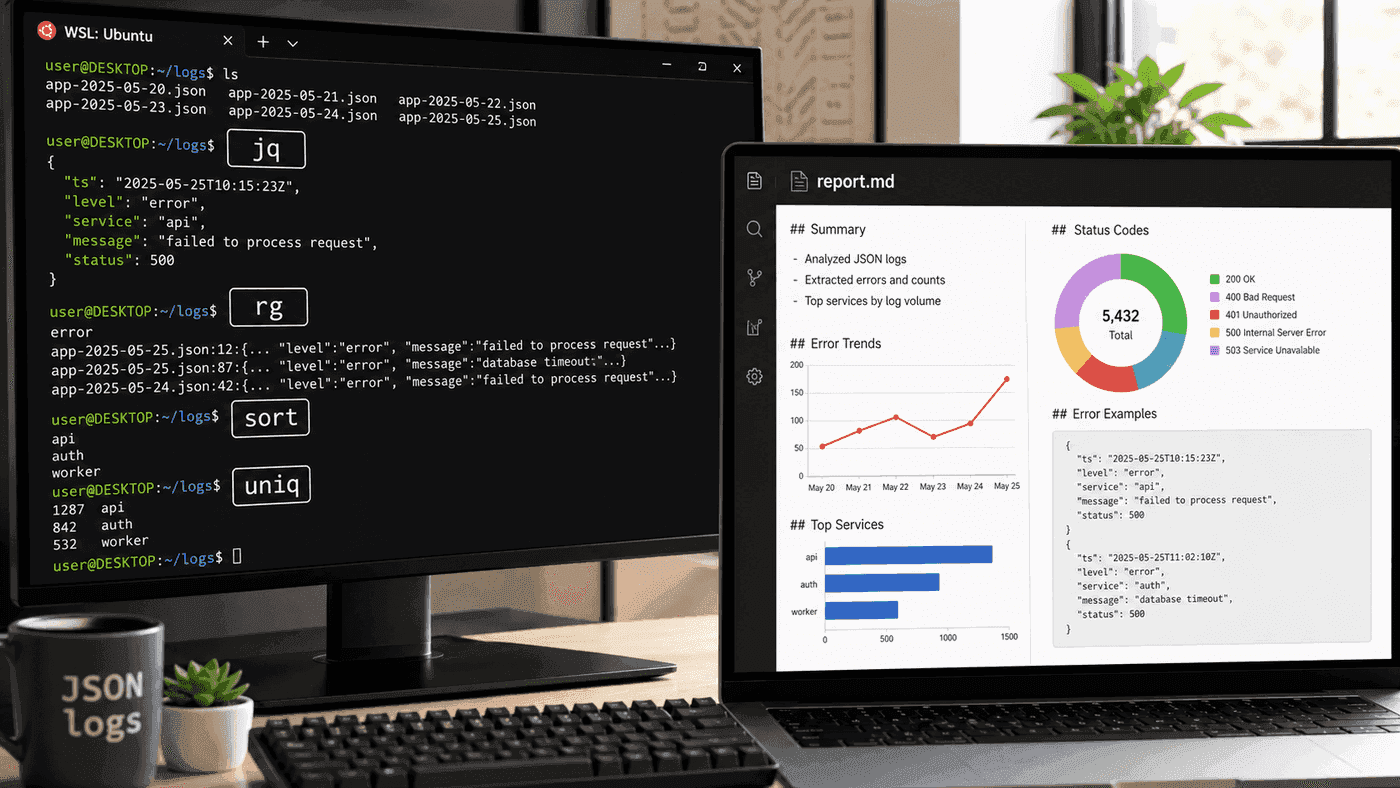
The value is not that the commands look clever. The value is that intermediate results are visible. Today you explore the problem with pipes. Tomorrow you move stable steps into a script. The next day the output becomes a Markdown report. Windows handles viewing and sharing; WSL handles slicing the data cleanly.
Collapse the Commands into a Script
After exploring the data, write a script. For example, scripts/analyze-api-errors.sh:
#!/usr/bin/env bash
set -euo pipefail

log_dir="${1:-logs}"
out="${2:-api-error-report.md}"

tmp="$(mktemp -d)"
trap 'rm -rf "$tmp"' EXIT

jq -r 'select(.status >= 500) | [.ts, .path, .user_id, .status, .error] | @tsv' "$log_dir"/*.jsonl \
  > "$tmp/errors.tsv"

{
  echo "# API Error Brief"
  echo
  echo "Generated at: $(date '+%Y-%m-%d %H:%M:%S')"
  echo

  echo "## Overview"
  echo
  total="$(wc -l < "$tmp/errors.tsv" | tr -d ' ')"
  echo "- Total 5xx errors: $total"
  echo

  echo "## Top Endpoints"
  echo
  awk -F '\t' '{print $2}' "$tmp/errors.tsv" | sort | uniq -c | sort -nr | head -10 \
    | awk '{count=$1; $1=""; sub(/^ /,""); printf "- %s: %s\n", $0, count}'
  echo

  echo "## Top Error Causes"
  echo
  awk -F '\t' '{print $5}' "$tmp/errors.tsv" | sort | uniq -c | sort -nr | head -10 \
    | awk '{count=$1; $1=""; sub(/^ /,""); printf "- %s: %s\n", $0, count}'
  echo

  echo "## Samples"
  echo
  echo '```text'
  head -20 "$tmp/errors.tsv"
  echo '```'
} > "$out"

echo "$out"
Run:
chmod +x scripts/analyze-api-errors.sh
scripts/analyze-api-errors.sh logs report.md
Open the result from Windows:
explorer.exe .Or from VS Code:
code report.mdThe relationship between WSL and Windows is natural here: scripts run in Linux, Markdown is viewed in Windows or VS Code, and the result can be pasted into a chat, email, or issue.
Use Makefile to Stabilize Entry Points
In a team, “run this script, but with these parameters” gets messy quickly. I usually put common commands into a Makefile:
.PHONY: error-report shellcheck

LOG_DIR ?= logs
REPORT ?= report.md

error-report:
	./scripts/analyze-api-errors.sh "$(LOG_DIR)" "$(REPORT)"

shellcheck:
	shellcheck scripts/*.sh
Usage:
make error-report LOG_DIR=logs REPORT=report.md
make shellcheck
Makefile is not fancy, but it stabilizes the entry point. New teammates do not need to remember complex parameters, and CI can reuse the same command easily.
fzf Makes the Command Line Less Rigid
Sometimes you do not know which log file to inspect. Use fzf:
file="$(fd '\.jsonl$' logs | fzf --prompt='log> ')"
bat "$file"
Or choose an endpoint:
path="$(
  jq -r '.path' logs/*.jsonl \
    | sort -u \
    | fzf --prompt='path> '
)"

jq --arg path "$path" 'select(.path == $path)' logs/*.jsonl | less
fzf puts “let me see the candidates first” back into the command line. Not everything needs a Web UI.
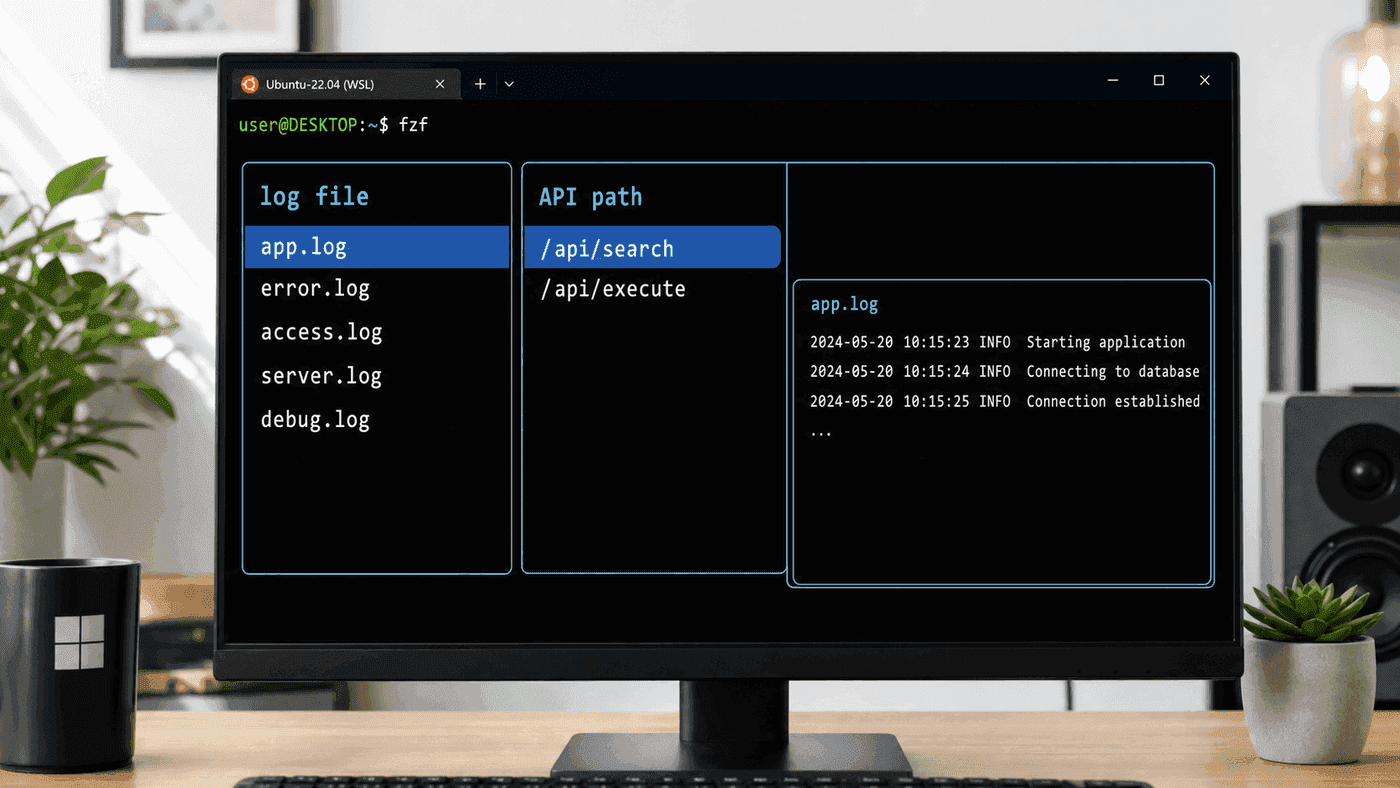
Many investigations are not one command. They are “choose a file, choose a path, inspect the result.” fzf fills that semi-interactive gap. It is lighter than a temporary Web page and steadier than copying filenames by hand.
Work with the Windows Desktop, Not Against It
I no longer try to stay in the terminal for everything. Use Windows where Windows is useful.
Open the current directory:
explorer.exe .Read from the Windows clipboard:
powershell.exe -Command "Get-Clipboard"Copy a report to the Windows clipboard:
clip.exe < report.mdOpen a link with the default browser:
start.exe https://example.comThese commands are good in personal scripts. They should not appear everywhere in team build scripts. Team scripts should usually remain runnable on Linux. Personal productivity scripts can make full use of the Windows desktop.
Scheduled Tasks: Choose the Simple Option First
If a script only needs to run on your machine every morning, do not start with complicated scheduling.
Option one: use Windows Task Scheduler to call WSL:
wsl.exe -d Ubuntu -- bash -lc "cd ~/work/tools && ./scripts/daily-report.sh"Option two: use a systemd timer inside WSL. This fits when the related services and files all live inside WSL.
My rule:
- if the task needs Windows login state, desktop notifications, or enterprise desktop tools, use Windows Task Scheduler;
- if the task is pure Linux scripts and Linux files, use a systemd timer;
- if the task matters to a team, do not keep it on a personal computer; move it to a server or CI.
A Rule I Have Used for Years
If one command expresses it clearly, do not write a program yet.
If a command repeats more than three times, write a script.
If more than two people use the script, add a Makefile.
If the script affects team delivery, add tests and CI.
If it must run for a long time, move it off your machine.
This is where WSL’s meaning becomes clear: it lets Windows users follow the same Unix evolution path.
Not because terminals are cooler, but because composable text tools genuinely save time.
Summary
One reason I like WSL is that it does not force me to choose between Windows and Linux.
Desktop, browser, communication tools, and Office stay on Windows.
Search, filtering, batch work, builds, tests, and scripts stay in Linux.
When the two sides need to hand things over, small bridges such as explorer.exe, clip.exe, and code . are enough.
Over time, the workflow becomes smooth:
export logs, pipe them, generate a report, copy it out.
pull code, run tests, fix a script, open the result.
download assets, batch transform, preview, archive.
This is not nostalgic Unix romanticism. It is just a way to combine small tools and squeeze out repetitive work.
References
- Set up a WSL development environment - Microsoft Learn
- Developing in WSL - Visual Studio Code
- Basic commands for WSL - Microsoft Learn
- Advanced settings configuration in WSL - Microsoft Learn
Follow ZiCode on WeChat
If this post was useful, you can follow later updates on WeChat as well.

X / Twitter
Follow @ax2_zicode
Faster technical notes, short thoughts, and new-post alerts are posted on X.

More in this column
- WSL Disk Space Cleanup: VHDX, Docker, Model Caches, and What Actually Frees Space
- Docker in WSL: The Slow Part Is Usually the Mount Boundary
- WSL Is Not Just a Virtual Machine
- Developing Linux GUI Apps in WSL: From Script Windows to Maintainable Tools
- From X11 to Wayland: Why WSLg Is Not Just an X Server
- Opening Images with fim in WSL, Directly on the Windows Desktop