Opening Images with fim in WSL, Directly on the Windows Desktop
A few days ago, I was checking an image generated by a script inside WSL and typed:
fim result.pngI expected either a block of terminal-style image output or an error because there was no framebuffer. Instead, a graphical window appeared on the Windows desktop. I could drag it, Alt+Tab to it, and place it next to other Windows apps.
This is easy to overlook. Modern WSL has made Linux GUI support feel so natural that it is easy to forget it was not always like this.
This article is not about over-configuring WSL. It starts from the tiny fim tool and records what image display and Linux GUI programs look like in today’s WSL: where it is genuinely useful, and where it is better not to overdo it.
First, Confirm WSLg Works
On Windows 11, or recent Windows 10 + WSL2 environments, Linux GUI programs can appear directly on the Windows desktop mainly because of WSLg.
Microsoft’s documentation says this directly: WSL supports running X11 and Wayland Linux GUI applications integrated with the Windows desktop, including Start Menu launch, taskbar pinning, Alt+Tab switching, and clipboard copy/paste across Windows and Linux. This requires WSL2; WSL1 does not support it.
On a new machine, one administrator PowerShell command is often enough:
wsl --installIf WSL is already installed, update first:
wsl --update
wsl --shutdown
Then enter Ubuntu and run the plainest test:
sudo apt update
sudo apt install x11-apps -y
xeyes
If the old pair of eyes appears on screen, the basic GUI path is working. This test is more practical than staring at environment variables for half an hour.
You can also check:
echo "$WAYLAND_DISPLAY"
echo "$DISPLAY"
echo "$PULSE_SERVER"
ls -la /mnt/wslg
Normally, WSLg exposes Wayland, X11, and audio-related sockets into your Linux distribution. You do not need to start an X Server yourself, and you do not need to follow old tutorials that manually set DISPLAY=:0. Many old articles were written before WSLg; copying them today can break the default setup.
It Is Not a Remote Linux Desktop
This distinction matters.
WSLg does not open a full Linux desktop inside Windows and put every application into it. It is more like a delivery path for individual Linux GUI windows.
Roughly, modern Linux applications prefer Wayland. Traditional X11 applications go through XWayland. The compositor in the middle is Weston. Weston then uses an RDP backend to present individual application windows on the Windows desktop. Microsoft’s WSLg architecture article notes that it is Wayland-first while using XWayland to support many old X11 applications. The WSLg documentation also says WSLGd starts Weston, XWayland, PulseAudio, and establishes an RDP connection with the Windows host.
So what you see is not a “virtual machine desktop window.” You see individual Linux application windows mixed into the Windows desktop.
Run xeyes: one small window appears.
Run gedit: an editor appears.
Run fim result.png: an image window appears.
That is why the current WSL GUI experience is much smoother than manually configuring VcXsrv years ago. Back then you had to think about whether the X Server had started, whether the firewall allowed it, what DISPLAY should be, and whether the clipboard worked. Now, most of the time, you do not.

This is close to my daily WSLg use: terminal, editor, browser, and image preview windows in one Windows workspace. You do not constantly think about which window came from Linux and which came from Windows. You just switch to what the task needs.
What fim Is
fim stands for Fbi IMproved. The fbi here is not the agency; it is the Linux framebuffer image viewer.
It does have strong framebuffer roots, but it is no longer only a framebuffer viewer. The Debian man page calls it a “swiss army knife” for displaying images: it can use different graphical devices, supports keyboard operation, scripting, EXIF, autoscaling, and reading images from standard input. It chooses an output device based on the current environment; with a graphical environment it can use SDL/GTK, in text or remote situations it can use an ASCII driver, and on a bare Linux console it can use framebuffer.
This is where WSL can be misunderstood.
WSL usually does not have a traditional Linux console /dev/fb0. When fim opens a window under WSLg, Windows has not virtualized a framebuffer for it. fim has selected a graphical backend, and WSLg displays that window on the Windows desktop.
Install:
sudo apt update
sudo apt install fim -y
Open one image:
fim result.pngOpen a directory:
fim ./screenshots/Autoscale:
fim -a result.pngView a list of images through a pipe:
find ./frames -name '*.png' | sort | fim -Read an image from standard input:
cat result.png | fim --image-from-stdinfim is not fancy. It is keyboard-oriented. It is not a consumer photo viewer like the Windows Photos app. It is closer to an image version of less: open something from the command line, take a quick look, accept data from a pipe, and return to the terminal.
That fits WSL very well.
My Most Common Scenario: Compute in Linux, View on Windows
For example, a script generates an image:
python render_report.py --out report.png
fim -a report.png
Or batch-process images:
mkdir -p out
python process_images.py --input ./raw --output ./out
fim ./out
Or generate a Matplotlib chart:
import matplotlib.pyplot as plt

days = ["Mon", "Tue", "Wed", "Thu", "Fri"]
values = [12, 19, 15, 23, 18]

plt.figure(figsize=(8, 4))
plt.plot(days, values, marker="o")
plt.tight_layout()
plt.savefig("chart.png", dpi=160)
python chart.py
fim chart.pngThe value is not that Windows can view images. Of course it can. The comfort is that you do not leave the current context.
Dependencies are in WSL. The script is in WSL. The file is on the WSL ext4 filesystem. After generating the result, you do not copy it to /mnt/c/Users/..., start a temporary Web server, or open a notebook. You just run fim.
This is especially useful for:
- image processing: OpenCV preprocessing, detection boxes, OCR intermediate results;
- data visualization: charts and report screenshots from scripts;
- automation testing: Playwright or Selenium screenshots;
- maps and rendering: tiles, heatmaps, layout previews;
- document processing: PDF-to-image output and before/after compression checks.

If you work on image processing or visualization scripts, this “compute and view immediately” loop matters. It is not necessarily stronger than a notebook, but it is lighter: no service, no port, no browser state, just one command and one window.
Developing Linux GUI Programs Works Too
For image viewing, fim is enough. But WSLg is more valuable because you can develop graphical programs inside Linux while the windows appear on Windows.
The simplest example is OpenCV:
sudo apt install python3-opencv -yimport cv2
img = cv2.imread("sample.jpg")
cv2.imshow("preview", img)
cv2.waitKey(0)
cv2.destroyAllWindows()Under WSLg, cv2.imshow opens a graphical window. This is convenient for visual algorithm work, especially for checking edge detection, binarization, detection boxes, and cropped regions.
Tkinter also works:
sudo apt install python3-tk -yimport tkinter as tk
root = tk.Tk()
root.title("WSL GUI")
tk.Label(root, text="Hello from Linux").pack(padx=40, pady=30)
root.mainloop()For more product-like interfaces, use Qt:
python -m venv .venv
source .venv/bin/activate
pip install PySide6
from PySide6.QtWidgets import QApplication, QLabel
app = QApplication([])
label = QLabel("Linux GUI running on Windows via WSLg")
label.resize(420, 120)
label.show()
app.exec()If this program will eventually be distributed to Windows users, it still needs Windows-specific testing and packaging. But in early development, especially when core dependencies already live in the Linux ecosystem, running the GUI directly in WSL saves time.
My boundary is simple: WSLg is good for running individual Linux GUI applications. It is not a reason to treat WSL as a full Linux desktop. Microsoft documentation also notes that WSL GUI support is not a full desktop experience. You can experiment with GNOME or KDE, but daily work usually does not need that.
How I Debug It
If fim image.png does not show a window, I check in this order:
wsl --version
wsl --update
wsl --shutdown
After re-entering Linux:
sudo apt install x11-apps -y
xeyes
If xeyes does not appear, do not suspect fim first. The GUI base path is broken.
Then check:
echo "$DISPLAY"
echo "$WAYLAND_DISPLAY"
ls -la /mnt/wslg
If xeyes works but fim does not, inspect fim output devices and dependencies:
fim --output-device
ldd "$(command -v fim)" | grep -Ei 'sdl|gtk|x11|wayland'
Install a more traditional X11 image viewer for cross-checking:
sudo apt install feh -y
feh image.png
feh is light and predictable. It is not as pipe- and keyboard-oriented as fim, but as an X11 image viewer it is very reliable.
Old X Tools Still Have Diagnostic Value
xeyes looks like a toy, but it remains a good smoke test: whether a window appears, whether mouse events arrive, and whether XWayland works are all visible at once.
Besides xeyes, these small tools are still worth keeping:
| Tool | Package | Use | My take |
|---|---|---|---|
xeyes | x11-apps | Test X11 and mouse events | Diagnostic, not a real app replacement |
xclock | x11-apps | Clock and window refresh test | Occasionally useful |
xcalc | x11-apps | Lightweight calculator | Useful in a pinch |
xterm | xterm | Traditional X terminal | Do not replace Windows Terminal with it |
xev | x11-utils | Inspect keyboard, mouse, and window events | Very useful for GUI debugging |
xprop | x11-utils | Inspect window properties | Useful for X11 debugging |
xwininfo | x11-utils | Inspect window size and position | Useful for screenshot and automation debugging |
feh | feh | Quick image viewing | Covers part of the image-preview workflow |
meld | meld | Graphical diff/merge | Very good for Linux projects |
gimp | gimp | Image editing | Full tool, install as needed |
wireshark | wireshark | Packet analysis | Convenient for Linux network debugging |
I do not recommend replacing Windows programs just to replace them. A more comfortable setup is: Windows owns the desktop experience, and Linux tools appear where they are strong.
For example, I still use Windows Terminal. If an image was just generated by a Linux script, I use fim or feh. If a diff is related to a Linux project, I use meld. If network debugging happens inside Linux, Wireshark can be useful.
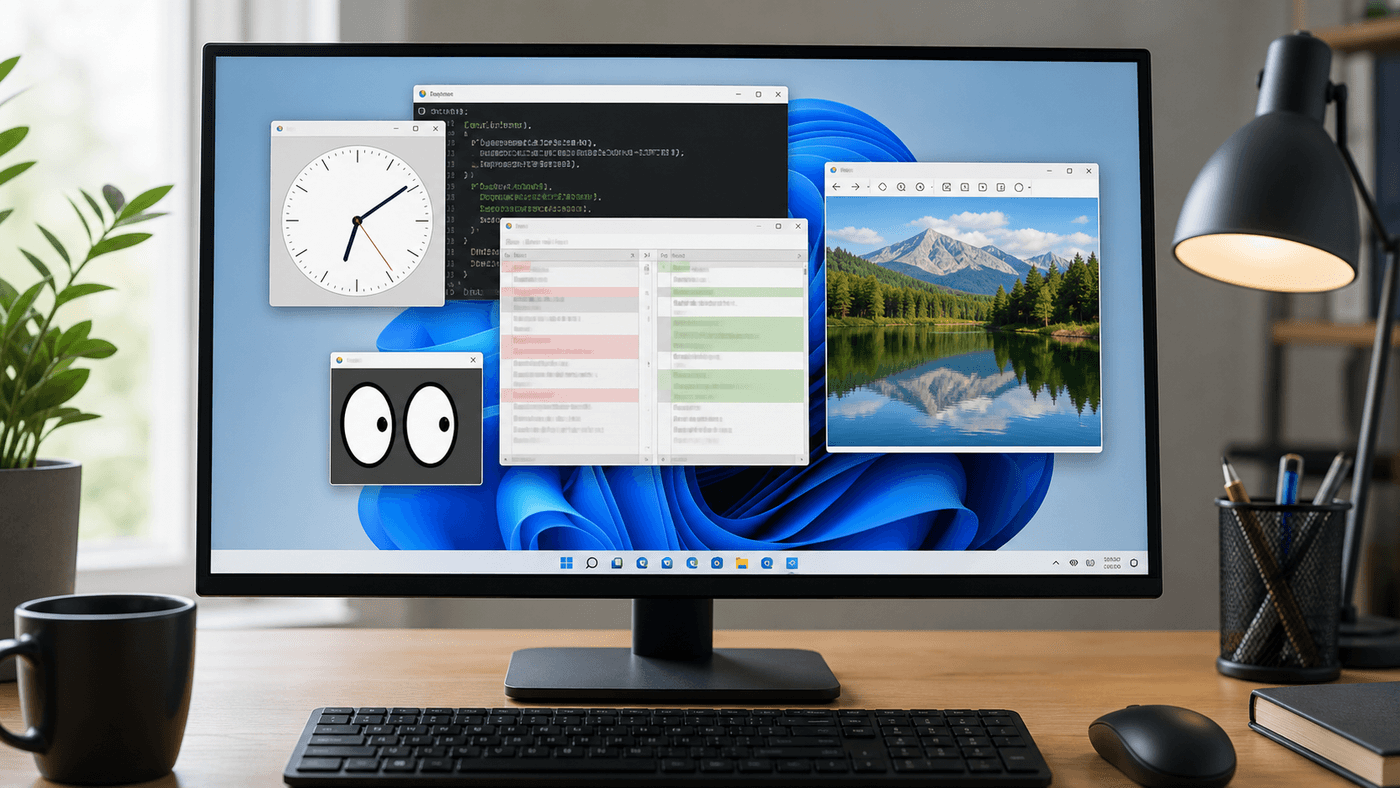
These tools are not valuable because they are pretty. They are cheap diagnostics. If xclock appears, the window path mostly works. If xev sees events, the input path is inspectable. If meld works, Linux project GUI helpers can enter your daily workflow directly.
fim, feh, or Windows Photos?
My choice is simple:
- if the image is in a Windows folder, double-click it;
- if the image was generated by a Linux script, use
fim -a image.png; - if I need to quickly inspect a directory, use
fim ./dir/orfeh ./dir/; - if I need to pass a file list from a pipe, use
find ... | fim -; - if I need to edit the image, use GIMP or a Windows tool;
- if I need to write a GUI program, use OpenCV, Tkinter, Qt, GTK, SDL, or another real framework.
The value of fim is not a beautiful interface. It stands between the command line and a graphical window. It shortens the path: generate image, look once, keep editing the script.
Summary
fim result.png opening a window on the Windows desktop looks like a tiny trick.
But behind it is a workflow change: Linux is no longer just a black terminal box inside Windows, and it does not need to become a full virtual machine. When it needs a graphical interface, it hands the window to Windows. When it needs package management, scripts, compilation, and data processing, it remains Linux.
That is the most comfortable part of WSLg.
Not showing off that Linux GUI can run on Windows, but reducing interruption.
Write script, generate image, preview, keep editing.
Run tool, show window, close it, return to terminal.
References
- Run Linux GUI apps on the Windows Subsystem for Linux | Microsoft Learn
- microsoft/wslg: WSLg architecture and components
- WSLg Architecture | Windows Command Line
- fim(1) Debian man page
Follow ZiCode on WeChat
If this post was useful, you can follow later updates on WeChat as well.

X / Twitter
Follow @ax2_zicode
Faster technical notes, short thoughts, and new-post alerts are posted on X.