
From X11 to Wayland: Why WSLg Is Not Just an X Server
If you search for “run Linux GUI apps in WSL”, you can easily find old tutorials: install VcXsrv, open XLaunch, allow it through the firewall, and manually set DISPLAY=$(cat /etc/resolv.conf | grep nameserver | awk '{print $2}'):0.
Those tutorials were not necessarily wrong. Many are simply no longer the right default for today’s WSLg.
Today, on Windows 11 with Ubuntu in WSL, installing xeyes or gedit often needs no configuration:
sudo apt install x11-apps gedit -y
xeyes
gedit
The windows appear on the Windows desktop. They can Alt+Tab, copy and paste, and sit beside ordinary Windows programs.
At first glance, this looks like “Microsoft built in an X Server.” But WSLg is doing something more indirect. It is not going back to X11. It connects Wayland, XWayland, Weston, PulseAudio, and RDP into a bridge. Once you understand that bridge, many WSL GUI issues stop feeling mysterious.
Start from xeyes, but Look at Protocols
Run an old X11 tool:
sudo apt install x11-apps -y
xeyes
Then run a more modern GTK app:
sudo apt install gedit -y
gedit
Both windows appear on the Windows desktop, but they may take different paths.
xeyes is a classic X11 program. It talks to an X server.
A GTK application such as gedit can use Wayland on a modern Linux desktop, or fall back to X11.
Inside WSLg, Wayland applications usually talk directly to the Weston compositor; X11 applications go through XWayland first, then reach Weston.
Check the environment:
echo "$WAYLAND_DISPLAY"
echo "$DISPLAY"
ls -la /mnt/wslg
When WSLg works normally, both WAYLAND_DISPLAY and DISPLAY often exist. Seeing DISPLAY makes many people assume “it is still X11.” In reality, that variable mostly supports older programs. The primary route is Wayland; X11 is handled through XWayland compatibility.
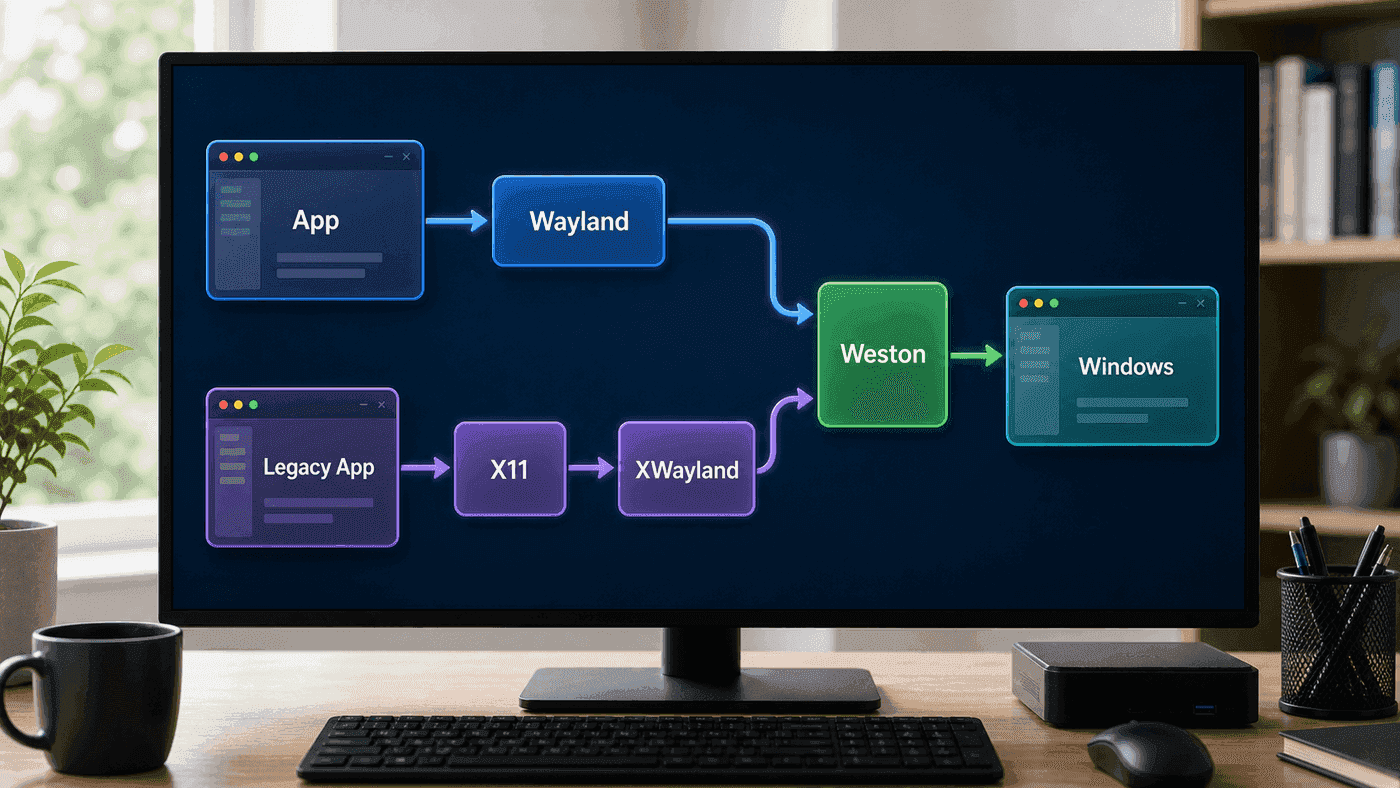
This diagram corrects an intuition: WSLg does not maintain only one “X11 to Windows” path. Modern and older applications may enter from different paths, but both eventually pass through Weston before being delivered to Windows.
X11’s Strength: Display as a Network Service
X11 is old, but its design still feels bold.
In X11 terminology, the words are counterintuitive: the X server usually runs on the machine with the display, keyboard, and mouse, while applications are X clients. Applications send requests to “draw windows and receive input” to the X server; the X server performs the actual display work.
This is why early Unix workstations liked the model. A program could run on a large remote machine while the window appeared on the small terminal in front of you. The X.Org manual describes the X Window System as a network-transparent window system. Starting a program on one machine and displaying its window on another is classic X11.
A typical command:
ssh -X user@server
xclock
If everything is configured correctly, the xclock window appears on the local machine. The valuable part is simplicity: the application does not need to know where the display is; the X server abstracts display and input into a network protocol.
But the design also has costs.
First, the security model is coarse. Clients connected to the same X server are naturally too close to other windows and input events. Access control and security extensions exist, but the base model is not “each application can only see its own window.”
Second, modern graphics stacks are much more complex. OpenGL, GPU compositing, HiDPI, multi-monitor, touch, sandboxing, screen recording, input methods, clipboard, accessibility: many of these do not fit comfortably into the 1980s X11 model.
Third, network transparency is often less transparent for modern desktop applications than it sounds. A program may depend on D-Bus, audio, GPU, file pickers, portals, themes, fonts, and input methods. Forwarding only X11 does not guarantee a complete experience.
So X11 is not “bad.” It simply carries too much history.
Wayland: Make the Compositor the Desktop Boundary
Wayland’s idea is much simpler: applications render their content into buffers, and the compositor combines those buffers on screen while handling input, window management, and display output.
In X11, the X server is the center, and window managers, compositors, and clients interact through many historical protocols and extensions. In Wayland, the compositor has a heavier and clearer role. GNOME Mutter, KDE KWin, and Weston can all be Wayland compositors.
This brings an important change: applications should not casually inspect other applications by default.
Screenshots, screen recording, global shortcuts, input methods, drag and drop, and file selection usually go through the compositor or portals with explicit permission in the Wayland world. It can feel more troublesome than X11, but the boundary is clearer. For ordinary desktop users this may not be obvious; for sandboxing, security, and remote desktop, it matters a lot.
Wayland documentation describes the protocol as asynchronous and object-oriented. It does not try to carry the historical goal of an entire network-transparent window system. It is more like a local cooperation protocol between applications and the compositor.
This explains a common misunderstanding: Wayland is not “new X11.” It is a different model.
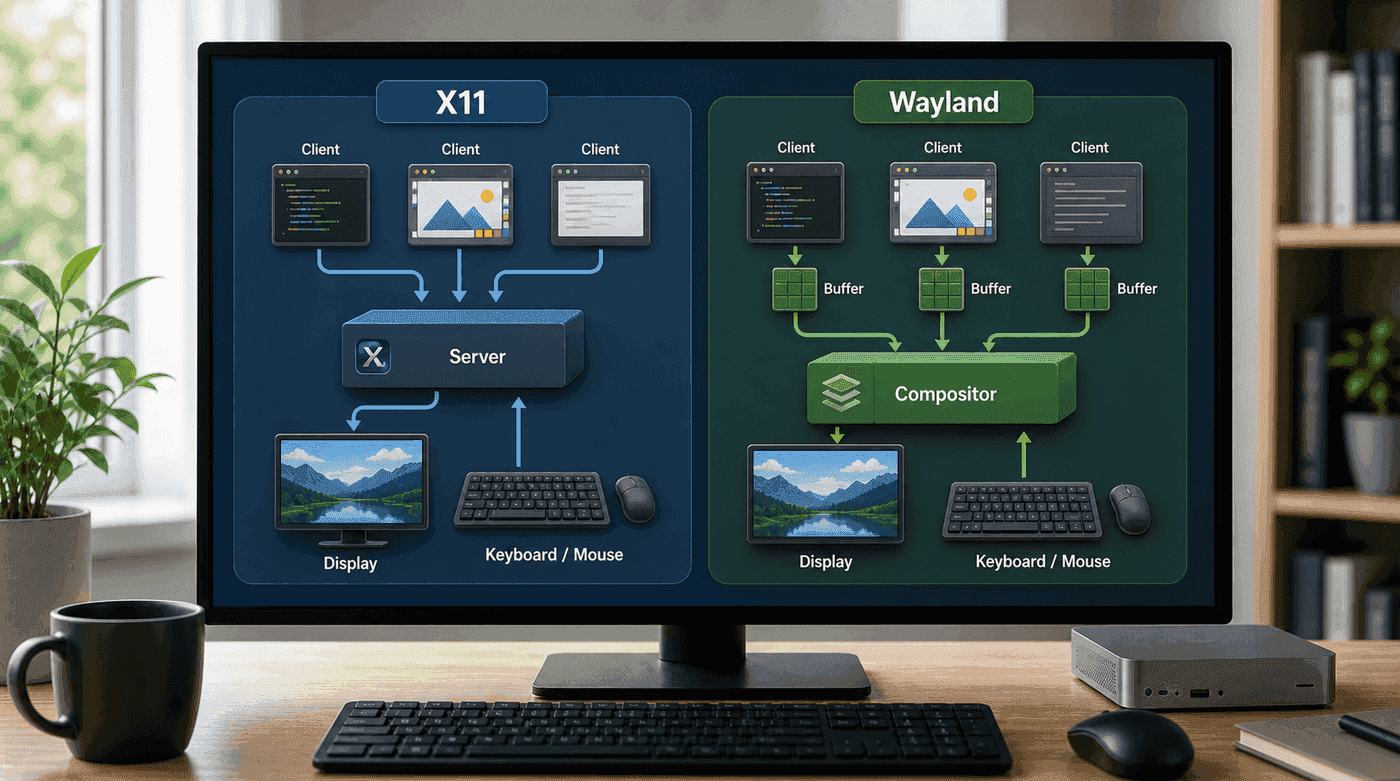
If I remember only one difference, it is this: X11 makes display service the center; Wayland makes the compositor the desktop boundary. That boundary affects not only performance, but also input, screenshots, window management, and permissions.
XWayland: Forty Years of Applications Cannot Be Cut Off at Once
If Wayland is the new path, why does WSLg still have DISPLAY, and why does xeyes still work?
The answer is XWayland.
XWayland can be understood as an X server running inside the Wayland world. Old X11 applications connect to XWayland and think they are still talking to an X server; XWayland then passes window content to the Wayland compositor.
This compatibility layer is critical. The Linux GUI ecosystem still contains many programs, toolkits, plugins, old applications, and debugging tools that depend on X11. Without XWayland, migrating to Wayland would be far more painful.
The same applies in WSLg. Microsoft does not require every Linux GUI program to support Wayland. Modern programs can prefer Wayland, while XWayland catches old X11 programs. Being able to run gedit and xeyes side by side is the compatibility layer at work.
To observe which path a GTK program uses, temporarily set the backend:
GDK_BACKEND=wayland gedit
GDK_BACKEND=x11 gedit
Not every program supports this switch, and the visual difference is not always obvious. But it helps you understand that in WSLg, “it displays” does not mean “every application uses the same protocol.”
The Key in WSLg Is Weston + RDP, Not X Alone
The interesting part of WSLg’s architecture is that it did not choose “make Windows directly act as an X Server.” Its core is a graphics stack inside a system distribution: Weston, XWayland, PulseAudio, and an RDP backend that integrates windows into Windows.
The WSLg README says WSLGd starts Weston, XWayland, and PulseAudio, and silently starts Windows-side mstsc.exe to establish an RDP connection. This RDP connection remains ready, so later GUI applications do not need to establish it from scratch.
The roles are:
Weston is the Wayland compositor. It receives Wayland clients and also receives X11 clients through XWayland.
XWayland supports old X11 applications.
PulseAudio handles audio input and output; WSLg uses plugins to connect audio through the RDP transport.
RDP carries windows, input, audio, and related integration to Windows.
mstsc.exe is the Windows Remote Desktop client, but WSLg uses it as an invisible bridge.
That is why WSLg does not feel like a traditional remote desktop. You do not see a full Linux desktop. You see individual Linux application windows mixed into the Windows desktop. RDP has RemoteApp/RAIL-style capabilities that allow remote applications to appear as local windows. WSLg borrows this idea.
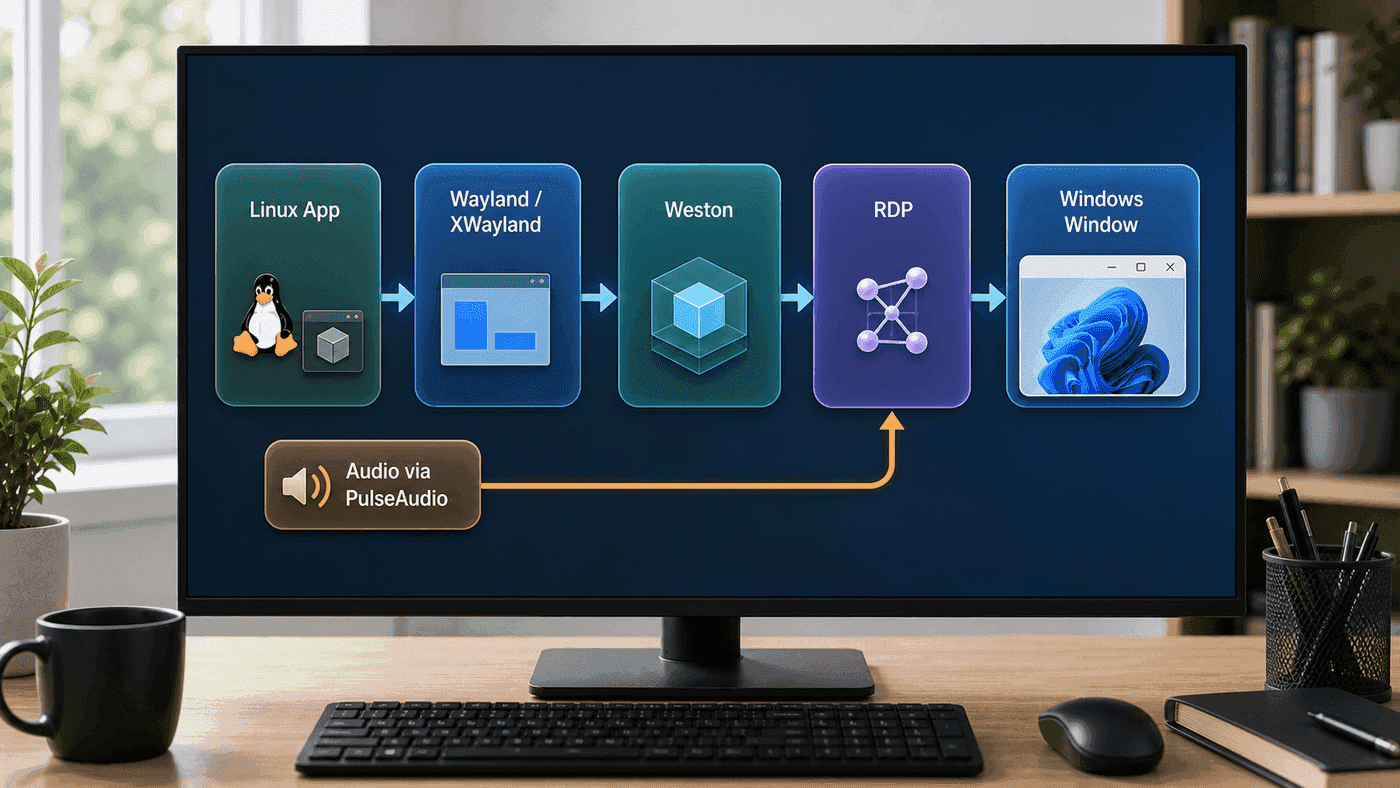
This is why WSLg should not be simplified to “Windows has a built-in X Server.” The real path is more complex and better integrated with the Windows desktop: Linux keeps the Wayland/XWayland ecosystem; Windows receives windows, input, and audio through mature remote-application capabilities.
Why Old Tutorials Now Often Create Problems
Old WSL GUI tutorials often tell you to set:
export DISPLAY=172.xx.xx.xx:0or add this to ~/.bashrc:
export DISPLAY=$(grep nameserver /etc/resolv.conf | awk '{print $2}'):0Before WSLg, this was how Linux GUI programs connected to a third-party Windows X Server such as VcXsrv or Xming. WSL only provided a command line, so GUI programs needed an X Server running on Windows.
Now, if WSLg is already present and you forcibly override DISPLAY, you may pull applications away from the default WSLg path. The result can be: some programs do not open, clipboard integration breaks, scaling is wrong, or windows appear on a third-party X Server.
My recommendation:
Do not configure DISPLAY first.
Run xeyes, gedit, and glxgears first.
Confirm whether WSLg already works.
Only set DISPLAY in a temporary shell if you really need a third-party X Server.
For debugging:
echo "$DISPLAY"
echo "$WAYLAND_DISPLAY"
echo "$XDG_RUNTIME_DIR"
ls -la /mnt/wslg
ps aux | grep -E 'weston|Xwayland|pulseaudio' | grep -v grep
Do not treat export DISPLAY=... from the Internet as a mandatory WSL GUI step. It is more like a compatibility solution from an earlier era.
A Small Reproducible Experiment
Install a few tools:
sudo apt update
sudo apt install x11-apps mesa-utils gedit -y
Run X11 tools:
xeyes
xclock
Run an OpenGL test:
glxgearsRun a GTK editor:
geditThen try:
GDK_BACKEND=wayland gedit
GDK_BACKEND=x11 gedit
Observe:
Do the windows appear on the Windows desktop instead of inside a Linux desktop container?
Does Alt+Tab work?
Does copy/paste work between Windows and Linux?
Are scaling, input methods, and Chinese text rendering normal?
After shutting down WSL and starting again, do you need to manually start any X Server?
These questions are more valuable than merely checking whether DISPLAY exists.
If you want to confirm you are not using an old third-party X Server setup, temporarily comment out manual DISPLAY configuration:
grep -n "DISPLAY" ~/.bashrc ~/.zshrc ~/.profile 2>/dev/nullMany WSL GUI problems come from one old line left in a shell profile.
WSLg Is Not a Full Linux Desktop
Once you understand the bridge, you should also accept its boundary.
WSLg is good for running individual Linux GUI applications: image viewers, text editors, drawing tools, small IDEs, debugging windows, Matplotlib interactive plots, and OpenCV previews.
It is not meant to turn WSL into a full Linux desktop. You can experiment with desktop environments, but that is not the main path. The main path is: Windows remains the desktop, and Linux applications appear as individual windows.
This also explains why I do not recommend chasing a “complete Ubuntu desktop” inside WSL. If you really need a full Linux desktop, independent login session, complete system tray, desktop components, and session management, a virtual machine or a real Linux machine is more direct. WSLg’s advantage is that it is light, fast, and close to the Windows workflow.
Practical Value for Developers
Knowing these details is not about memorizing names. It changes daily decisions.
First, when an X11 application works, do not assume WSLg is only an X Server. The main path is Wayland; X11 is the compatibility layer.
Second, when a GUI problem appears, remove old DISPLAY configuration first, then inspect /mnt/wslg and WSLg processes. Do not install a third-party X Server first.
Third, if you develop Linux GUI applications, test both Wayland and X11/XWayland paths. Input, clipboard, drag and drop, scaling, and HiDPI can behave differently.
Fourth, if you need screenshots, screen recording, global shortcuts, or cross-window inspection, do not apply old X11 habits to Wayland. In the Wayland world, these capabilities usually involve the compositor or portals.
Fifth, WSLg fits “Windows desktop + Linux toolchain.” It is not a proof that a Linux desktop environment can fully replace Windows on that machine.
My Boundary
I treat WSLg as one part of the development toolchain.
If a script generates a chart, I pop open a window.
If OpenCV needs image debugging, I use imshow.
Sometimes I use gedit, meld, xeyes, or glxgears to verify the graphics path.
When writing a Linux GUI tool, I run it in WSL first, then verify again on a real Linux desktop or packaging environment.
I do not install a full desktop in WSL, and I do not edit DISPLAY everywhere just for one GUI program. If the default WSLg path works, use it. If it does not, first check old configuration pollution, then whether the application depends on special graphics behavior.
That is WSLg at its best: it does not take over the Windows desktop, and it does not pretend to be a complete Linux desktop. When you need a Linux window, it hands one over.
References
- WSLg Architecture - Windows Command Line
- microsoft/wslg - GitHub
- X Window System manual page - X.Org
- Wayland Protocol and Model of Operation
- Working across Windows and Linux file systems - Microsoft Learn
Follow ZiCode on WeChat
If this post was useful, you can follow later updates on WeChat as well.

X / Twitter
Follow @ax2_zicode
Faster technical notes, short thoughts, and new-post alerts are posted on X.

More in this column
- Docker in WSL: The Slow Part Is Usually the Mount Boundary
- WSL Is Not Just a Virtual Machine
- Developing Linux GUI Apps in WSL: From Script Windows to Maintainable Tools
- Using a Unix Workflow on Windows: grep, Pipes, and Scripts in Daily Work
- Opening Images with fim in WSL, Directly on the Windows Desktop