
WSL Is Not Just a Virtual Machine
I have seen many teams misuse WSL. The root cause is rarely that people do not know the commands. It is usually that they are unclear about what WSL is supposed to be.
Some people treat it as a faster Git Bash. They keep every project under C:\Users, run npm install under /mnt/c, and conclude that WSL is slow.
Some people treat it as a full Linux server. They put databases, queues, monitoring, GPU services, and background jobs inside it. Then Windows restarts, and the whole “server” disappears.
Others treat it as a traditional virtual machine. They look for NAT adapters, snapshots, VM consoles, and bridged networking, until the setup starts to look like an operations incident.
WSL is most useful in a narrower role: a Linux development environment attached to the Windows desktop.
This article starts from a common team scenario: several Windows laptops need a consistent Node, Python, Docker, database-client, and scripting toolchain. What should go into WSL, what should stay on Windows, and what should not depend on a local machine at all?
WSL1 and WSL2 Are Different Boundaries
Microsoft describes WSL as a way to run a Linux environment on Windows without a traditional virtual machine or dual boot. That description is easy to misunderstand, because WSL1 and WSL2 are implemented very differently.
WSL1 is closer to a system-call translation layer. Many Linux system calls are implemented compatibly by Windows. It starts quickly and accesses the Windows filesystem directly, but Linux kernel compatibility is limited.
WSL2 uses a real Linux kernel running in a lightweight virtualization environment. Its Linux compatibility, container support, and filesystem performance are much closer to real Linux. Microsoft also states that WSL2 improves filesystem performance and provides full system-call compatibility compared with WSL1.
For a primary development environment today, assume WSL2.
Check the version:
wsl -l -vExample output:
  NAME      STATE           VERSION
* Ubuntu    Running         2
If it is still WSL1:
wsl --set-version Ubuntu 2The point is not simply that “2 is newer than 1.” The point is that you need to know which boundary you are working across.
WSL2 has a Linux kernel, its own ext4 filesystem, distributions, systemd support, and Docker capability. It is not merely a shell on Windows.
But it is still not an independent production server.
A Distribution Is Not an Environment
A common team misunderstanding is: “Everyone installed Ubuntu, so the environment is consistent.”
No.
The result depends on:
- Ubuntu version;
- apt sources and package versions;
- Python, Node, Go, and Rust versions;
- whether the project is in the WSL filesystem;
- whether
.wslconfiglimits memory or CPU; - whether Docker Desktop WSL integration is enabled;
- whether DNS, certificates, and enterprise network settings are consistent;
- whether personal shell profiles add hidden behavior.
I prefer to write team initialization as repeatable scripts instead of sending dozens of commands in a chat.
For example:
#!/usr/bin/env bash
set -euo pipefail

sudo apt update
sudo apt install -y \
  build-essential \
  curl \
  git \
  jq \
  unzip \
  ca-certificates \
  pkg-config

mkdir -p ~/work ~/bin

git config --global core.autocrlf input
git config --global init.defaultBranch main
Then split by project:
~/work/company/bootstrap-node.sh
~/work/company/bootstrap-python.sh
~/work/company/bootstrap-docker.sh
This is much more reliable than saying “install WSL and you are done.”
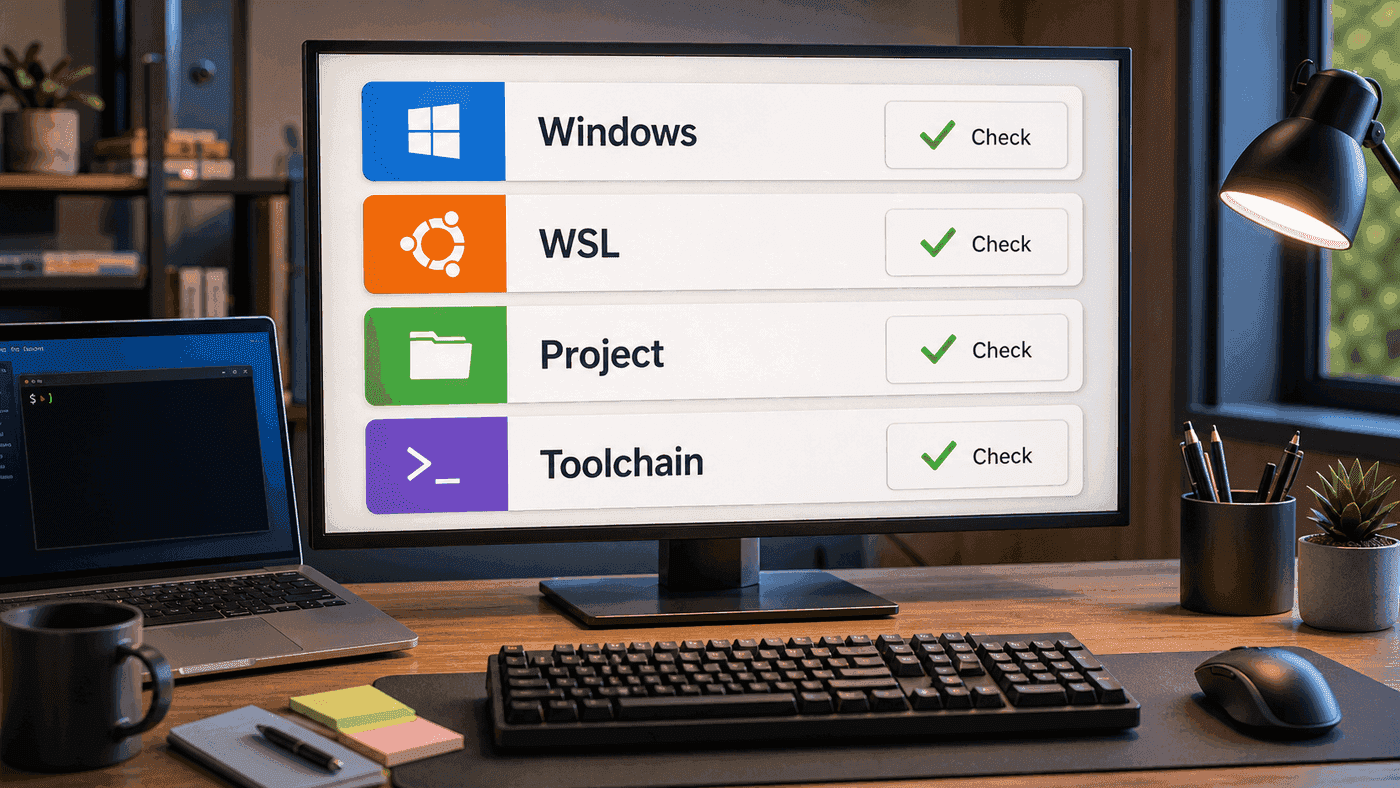
The checklist means that WSL is not an isolated VM image. It is one layer of a development machine. Windows handles the desktop, input method, browser, and enterprise security software. WSL handles Linux toolchains and project runtime. The project directory determines the performance boundary. Toolchains determine whether the team can reproduce the same environment. Initialization scripts should follow that layering.
Filesystem Boundaries Explain Most Performance Problems
The Linux filesystem of a WSL2 distribution usually lives inside a VHDX file. When you see /home/alex/work/project inside WSL, it is not a Windows directory underneath. It is an ext4 virtual disk.
Windows directories are mounted as paths like /mnt/c and /mnt/d.
My rule is simple:
source code, node_modules, venv, .git, build outputs -> WSL
downloads, Office documents, images, archives -> Windows
If a Node project lives under /mnt/c/Users/alex/project and you run:
npm install
npm run dev
slowness is expected. node_modules and .git create many small file operations. Crossing the Windows/WSL boundary amplifies the cost.
The better path:
mkdir -p ~/work
cd ~/work
git clone git@github.com:example/app.git
cd app
npm install
npm run dev
When opening it from VS Code on Windows, do not open the Windows path from File Explorer. Use:
cd ~/work/app
code .
This opens VS Code through Remote WSL. The terminal, extensions, and language servers stay with the project.
It Can Run Background Services, But It Is Not a Server
WSL now supports systemd, so many services can be started like on Linux:
systemctl --user status
sudo systemctl status ssh
This is useful. Running PostgreSQL, Redis, MinIO, a local model service, or another temporary development dependency can be convenient.
But I do not recommend treating WSL as a shared team service or placing critical long-running tasks inside it.
The reasons are practical:
- Windows updates or restarts affect WSL;
- user logout, sleep, and shutdown interrupt services;
- network addresses can change with mode;
- resource limits come from the local machine;
- backups and monitoring are usually not serious;
- a production issue cannot be explained with “my local WSL is fine.”
If a service is already depended on by more than one person, put it on a development server, a test environment, or a clearly configured Docker Compose setup. Do not hide it inside someone’s WSL instance.
WSL is good for local reproducibility. It is not local infrastructure.
.wslconfig Is a Global Knob, Not Project Configuration
WSL2 global settings live in .wslconfig under the Windows user directory. Microsoft notes that changes require wsl --shutdown before they take effect.
A common config:
[wsl2]
memory=16GB
processors=8
swap=8GB
localhostForwarding=true
If the machine has 32 GB of RAM, giving WSL 16 GB is reasonable. If the machine has only 16 GB and WSL gets 12 GB while browsers, IDEs, chat tools, and meeting software are open, Windows will struggle.
I would not commit .wslconfig as project configuration. It is personal machine configuration. Team docs can suggest ranges:
16 GB machine: memory=8GB, processors=4
32 GB machine: memory=16GB, processors=8
64 GB machine: memory=32GB, processors=12
Things that affect project reproducibility belong in the repository: Dockerfile, devcontainer, Makefile, scripts, and .env.example.

This boundary matters. .wslconfig can be suggested, but not forced. Project-level configuration must be versioned, reviewed, and replayable on a new machine. Otherwise the team eventually falls into “it works here, not there.”
Windows and Linux Can Call Each Other. Do Not Overuse It.
One nice part of WSL is that Linux can start Windows programs:
explorer.exe .
notepad.exe README.md
Windows can also access Linux files:
\\wsl.localhost\Ubuntu\home\alex\workThis is convenient. For example, after generating a report:
explorer.exe distBut I do not recommend building automation around large amounts of Windows/Linux cross-calling. If scripts are full of powershell.exe, cmd.exe, and wsl.exe, they can quickly become scripts that only work on one person’s laptop.
My rules are:
- cross the boundary for temporary viewing, opening files, and debugging;
- keep build, test, and deployment scripts inside one boundary;
- team scripts should usually assume they run on Linux;
- Windows-specific logic should be wrapped in one place, not scattered everywhere.
What a Team WSL Development Environment Should Look Like
If I had to define a minimal team setup, I would write:
Windows:
  - Windows Terminal
  - VS Code
  - Browser and communication tools
  - Docker Desktop

WSL Ubuntu:
  - Project source: ~/work
  - Git, build tools, language runtimes
  - Project scripts and tests
  - Local cache and temporary data

Remote environments:
  - Shared databases
  - Test services
  - CI/CD
  - Long-running tasks
The project README should contain:
git clone ...
cd ...
./scripts/bootstrap-dev.sh
./scripts/test.sh
./scripts/run-local.sh
For onboarding, the goal is not “install WSL.” The goal is “run the project tests within half an hour.”
When Not to Use WSL
WSL is useful, but not every workload belongs there.
I avoid it for:
- production services that need long-term stability;
- services that depend heavily on Linux kernel modules or special hardware passthrough;
- tests with strict network-topology requirements;
- teams where most members are non-technical users;
- projects with a mature remote development container or cloud dev environment;
- native Windows GUI deliverables that require extensive platform-specific testing.
These scenarios fit WSL well:
- web backend development;
- Node, Python, Go, and Rust toolchains;
- Docker Compose local environments;
- data processing and scripts;
- AI and machine-learning development;
- Linux CLI workflows;
- development that needs to coexist with Windows desktop applications.
Summary
WSL is not a normal virtual machine, and it is not an enhanced command prompt.
Its value is that it places a Linux development environment next to the Windows desktop. Code, dependencies, scripts, and containers live in Linux. Browser, editor, communication tools, and desktop software live in Windows.
Once you understand that role, many decisions become clear.
Put projects in the WSL filesystem.
Put long-running shared services on remote infrastructure.
Let Windows own the desktop.
Let Linux own development.
Cross the boundary when useful, but do not pretend the boundary is transparent.
References
- What is Windows Subsystem for Linux - Microsoft Learn
- How to install Linux on Windows with WSL - Microsoft Learn
- Basic commands for WSL - Microsoft Learn
- Advanced settings configuration in WSL - Microsoft Learn
- Developing in WSL - Visual Studio Code
Follow ZiCode on WeChat
If this post was useful, you can follow later updates on WeChat as well.

X / Twitter
Follow @ax2_zicode
Faster technical notes, short thoughts, and new-post alerts are posted on X.

More in this column
- AI Development in WSL: GPU, CUDA, Model Caches, and File IO
- Using WSL as Your Main Development Machine: Where Files and Tools Should Live
- WSL Disk Space Cleanup: VHDX, Docker, Model Caches, and What Actually Frees Space
- Docker in WSL: The Slow Part Is Usually the Mount Boundary
- Developing Linux GUI Apps in WSL: From Script Windows to Maintainable Tools
- Using a Unix Workflow on Windows: grep, Pipes, and Scripts in Daily Work
- From X11 to Wayland: Why WSLg Is Not Just an X Server
- Opening Images with fim in WSL, Directly on the Windows Desktop